
Home Networking & Printer/File Sharing, What you NEED to know |
![]() ![]() |
Home Networking & Printer/File Sharing, What you NEED to know |
Mar 13 2006, 08:31 PM
Post
#1
|
|||
![]() Trusted Tech Posts: 1,164 From: Oklahoma City, OK OS: Windows Vista Ultimate 64Bit |
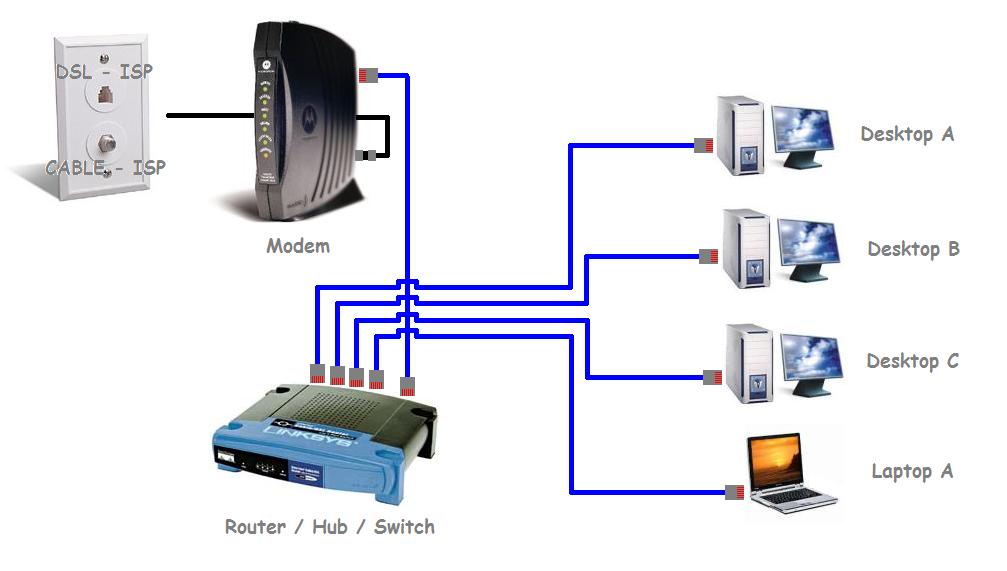
Wired Home Network Physical Setup (4 PC)
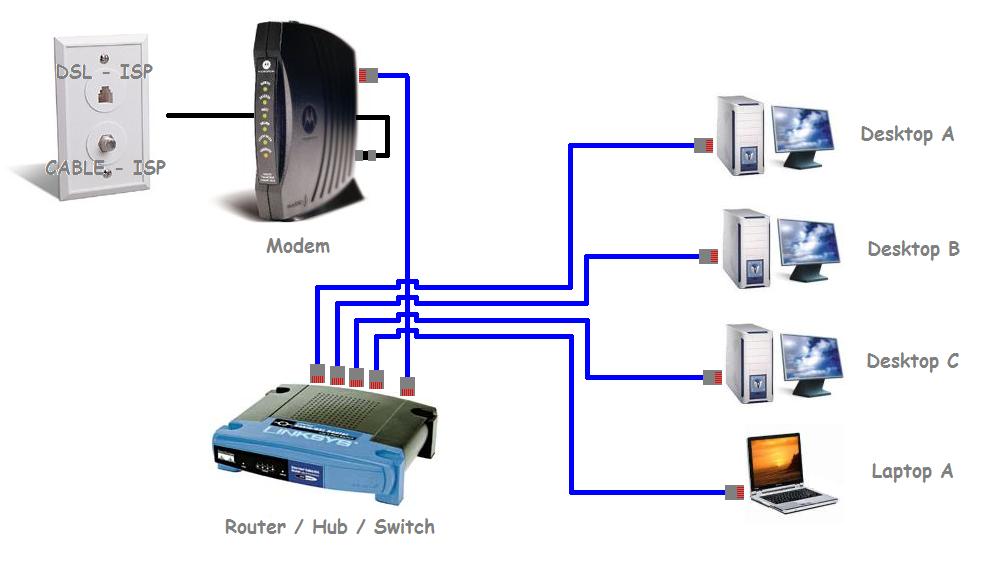
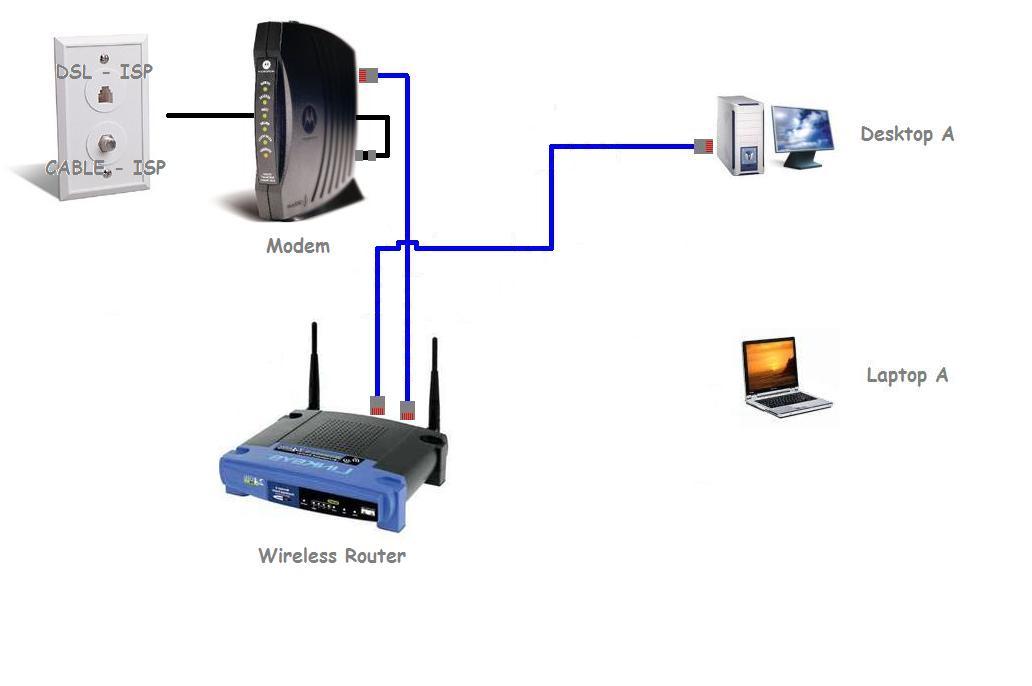
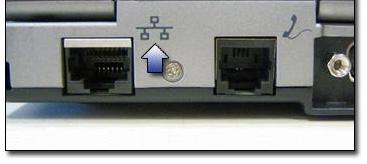
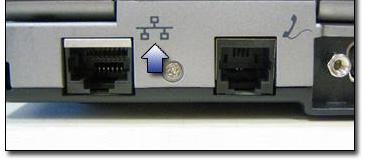
Automatic DHCP Physical Setup Instructions (Any OS) In this guide I will be using this Setup, as I have found the most common in residences. If you need help setting up your “Wired” Home network on four PC’s please follow the steps below. Any Combination of four total Desktop or Laptop PC’s may be used in this setup. 1. Turn off all the Computers 2. Unplug Power from the Modem 3. Unplug Power from the Router 4. Connect the Modem to the wall plate using a standard Coax Jumper (for Cable) or Standard Cat3 Jumper for DSL. 5. Connect the Router port (WAN, WLAN, or Internet) to the Modem using a standard CAT5 Jumper 6. Connect a standard CAT5 Jumper to Port 1 on the Router and connect the other end of the jumper to the Ethernet Port on the back of Desktop A 7. Connect a standard CAT5 Jumper to Port 2 on the Router and connect the other end of the jumper to the Ethernet Port on the back of Desktop B 8. Connect a standard CAT5 Jumper to Port 3 on the Router and connect the other end of the jumper to the Ethernet Port on the back of Desktop C 9. Connect a standard CAT5 Jumper to Port 4 on the Router and connect the other end of the jumper to the Ethernet Port on the back of Laptop A **The Ethernet port on a desktop or laptop has this symbol near it: 11. Plug Power into the Modem and wait for it to SYNC all the way up 12. Plug Power into the Router and wait for it to SYNC all the way up Go to Wired Home Network OS Setup, for the next steps. This post has been edited by admin: Aug 20 2007, 09:51 AM |
||
|
|
Mar 13 2006, 08:56 PM
Post
#2
|
|||||||||
![]() Trusted Tech Posts: 1,164 From: Oklahoma City, OK OS: Windows Vista Ultimate 64Bit |
Wired Home Network OS Setup (4 PC’s)
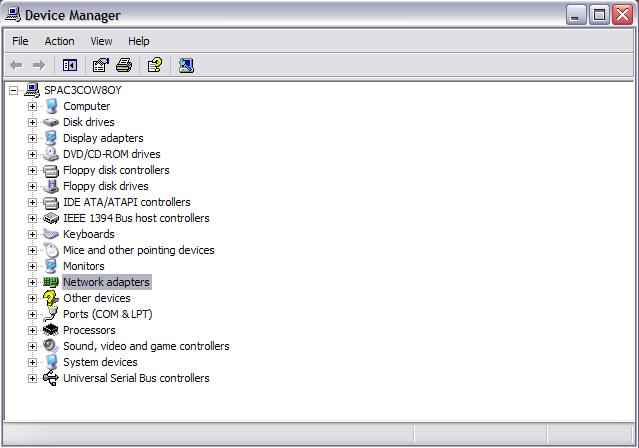
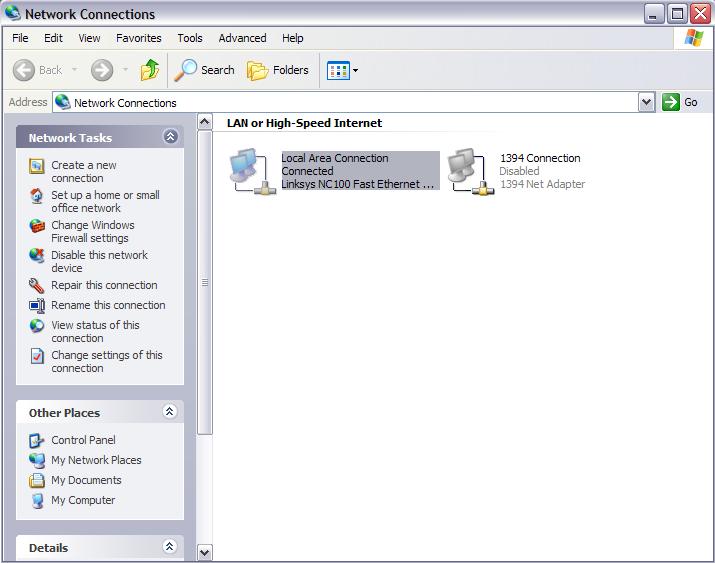
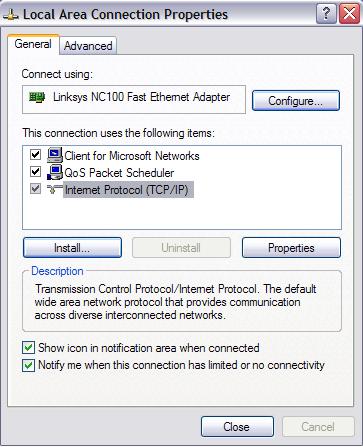
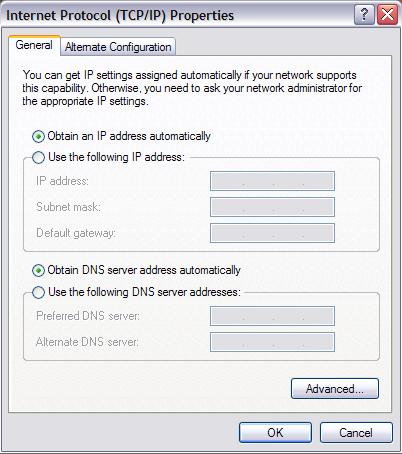
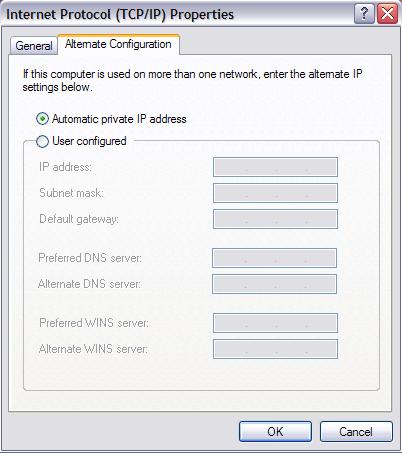
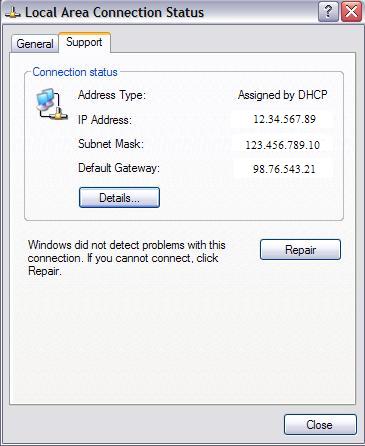
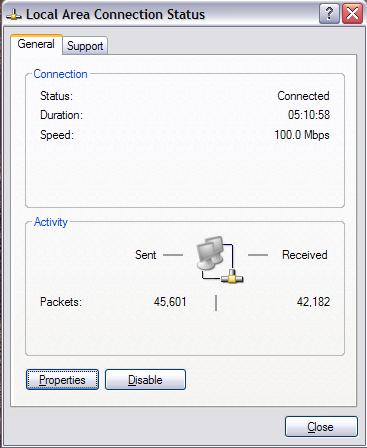
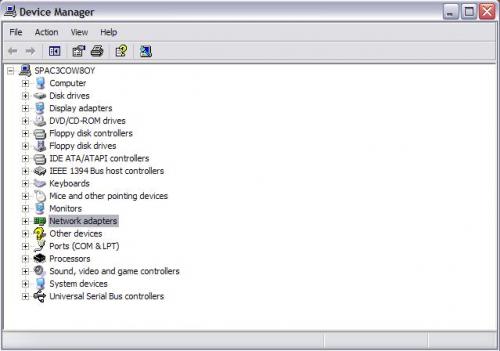
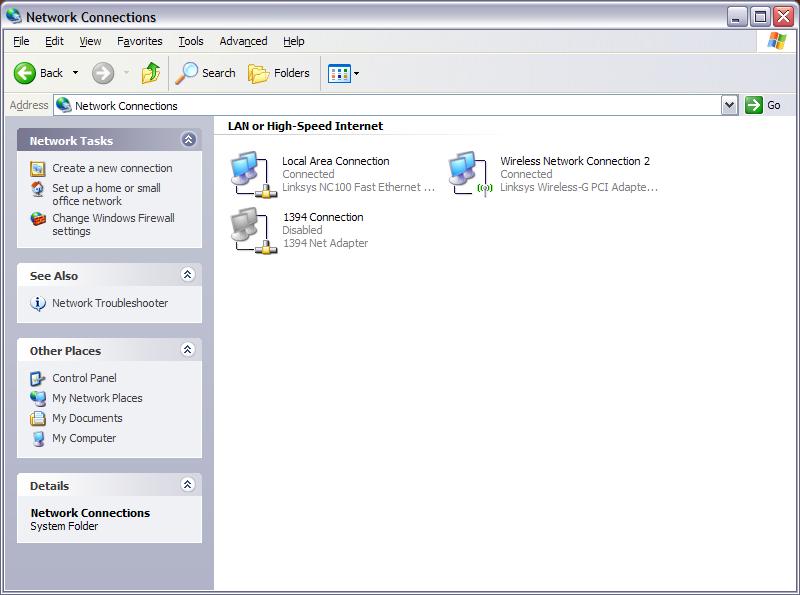
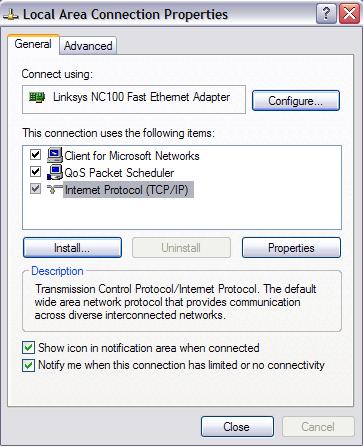
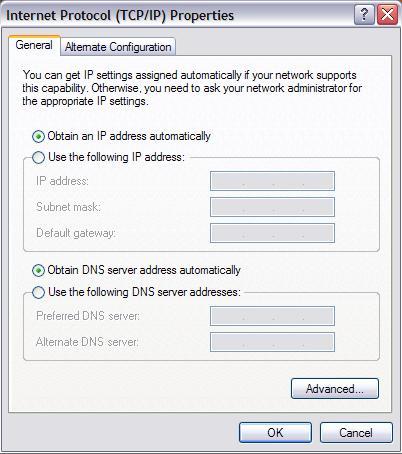
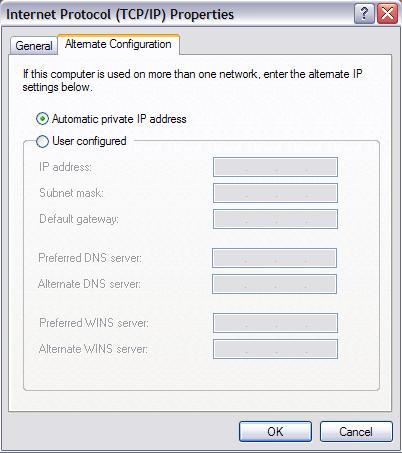
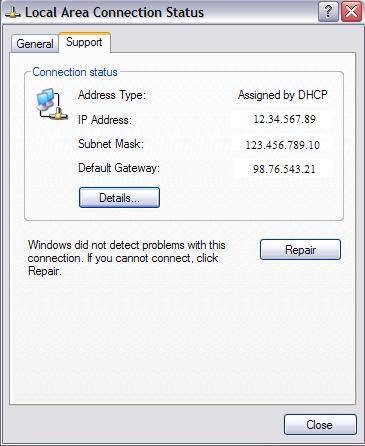
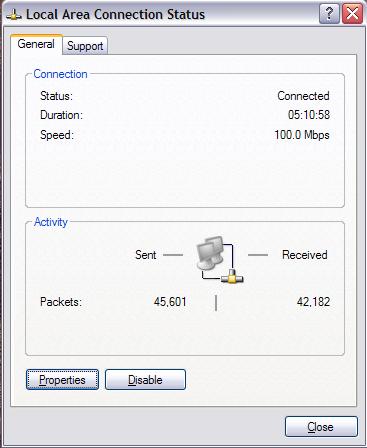
Windows XP and Automatic DHCP Operating System Setup Instructions (Windows XP) In this guide I will be using this Setup, as I have found the most common in residences. Important Note: If you need help setting up your “Wired” Home network on one to four PC’s please follow the steps below. Any Combination of Desktop or Laptop PC’s may be used in this setup, as long as they are connecting with Cat5. Before completing steps one through twelve of the Physical setup instructions contact your Internet Service Provider and find out what Type of IP Configuration they recommend using (Example: DHCP, Static, PPOE) and then proceed to the steps below, if they recommend DHCP. 1. Turn Desktop A on and wait for it to completely Boot. 2. Hold down the “Windows” key on the keyboard, and then press the “R” key on the keyboard. This opens the RUN Command. 3. Type in: devmgmt.msc :and press the OK button. This opens the Device Manager. 4. Scroll down to NETWORK ADAPTERS and expand the category by clicking on the “+” sign next to it. 5. Verify that there are no Yellow !’s on the devices. If there are, please stop following this guide and submit a post in the forum requesting “Help Loading Network Card Drivers”. 6. Verify that there are no RED X’s on the devices. If there are, then Right Click on the device and select ENABLE. After Enabling the device go back and check step 5. 7. If there are no RED X’s or Yellow !’s on the devices then close out the Device manager by clicking on FILE in the Upper left, then select EXIT. 8. Hold down the “Windows” key on the keyboard, and then press the “R” key on the keyboard. This opens the RUN Command 9. Type in: ncpa.cpl :and press the OK button. This opens the Network Connections Window. 10. Locate your Connection Type (Ethernet) and right click on to select PROPERTIES. 11. Click on the GENERAL tab 12. Under “This connection uses the following items:” make sure that only the following components have a check in the box next to them: Client for Microsoft Networks QOS Packet Scheduler Internet Protocol (TCP/IP) 13. Left click on “Internet Protocol (TCP/IP)” one time and then click on the PROPERTIES Button. 14. This opens the Internet Protocol (TCP/IP) Properties window. 15. Click on the GENERAL tab and verify that the bubbles for “Obtain an IP Address automatically” and “Obtain DNS server address automatically” are selected. 16. Click on the ALTERNATE CONFIGURATION tab and verify that the bubbles for “Automatic Private IP address” are selected. 17. Click the OK button. Taking you back to the “Local Area Connection Properties” screen. 18. Click the CLOSE button. Taking you back to the “Network Connections” window. 19. Right click on the same device again and select STATUS. Opens the “Local Area Connection Status” window. 20. Click on the SUPPORT tab 21. Click the REPAIR button, opening the ”Repair Local Area Connection” window 22. Click the “OK” or “CLOSE” button when it is done. Don’t worry if it says it can’t repair the Device. Taking you back to the “Local Area Connection Status” window 23. Verify that your “Address Type” is Assigned by DHCP. If it is not, then please submit a post in the forum asking for “Help enabling DHCP”. 24. Verify that your “IP Address” does not start with the prefix’s: 169 or, 172. If it does, then please submit a post in the forum asking for “Network Card has no connectivity”. 25. Click the GENERAL tab and under “Activity” verify that Packets Sent and received are both a “1” or Higher. If they are not then please submit a post in the forum asking for “Network Card has no connectivity”. 26. Click the CLOSE button. Taking you back to the “Network Connections” window. 27. Click on FILE in the upper Left and select CLOSE. 28. Hold down the “Windows” key on the keyboard, and then press the “R” key on the keyboard. This opens the RUN Command. 29. Type in: inetcpl.cpl :and press the OK button. This opens the Internet Options window. 30. Click on the SECURITY tab. 31. Under “Select a web zone to specify its security settings” change the “Internet, Local Internet, Trusted Sites, and Restricted sites” to default by selecting each Icon, then pressing the DEFAULT LEVEL button. If the Default button is grayed out, then it has already been applied and you need not worry about it. 32. Click on the PRIVACY button and under “Pop-Up Blocker” verify that the “Block Pop-Ups” box has a check in it. 33. Click on the CONTENT button and under “Content Advisor” verify that the ENABLE button says enable and not Disable. If it says Disable, then please submit a post in the forum asking for “How do I disable content Advisor”. 34. Click on the CONNECTIONS button and under “Dial-up and Virtual Private Network Settings” verify that nothing is listed. 35. Click on the ADVANCED tab and click the RESTORE DEFAULTS button, then the APPLY button and lastly the OK button. 36. Locate your Internet explorer Icon and double left click to launch. You now should be able to access the Internet. If you still cannot Access the internet then please submit a post in the forum asking for “Cannot access the internet”. 37. Complete the same Steps “1 through 36 of “Wired Home Network OS Setup” for Desktops B, C, and Laptop A. If interested in File and Printer Sharing across your Home network please move on to the next section “File and Print Share Setup” This post has been edited by admin: Aug 20 2007, 09:54 AM |
||||||||
|
|
Mar 13 2006, 09:03 PM
Post
#3
|
|||
![]() Trusted Tech Posts: 1,164 From: Oklahoma City, OK OS: Windows Vista Ultimate 64Bit |
Wireless Home Network Physical Setup (1 to ?? PC’s)
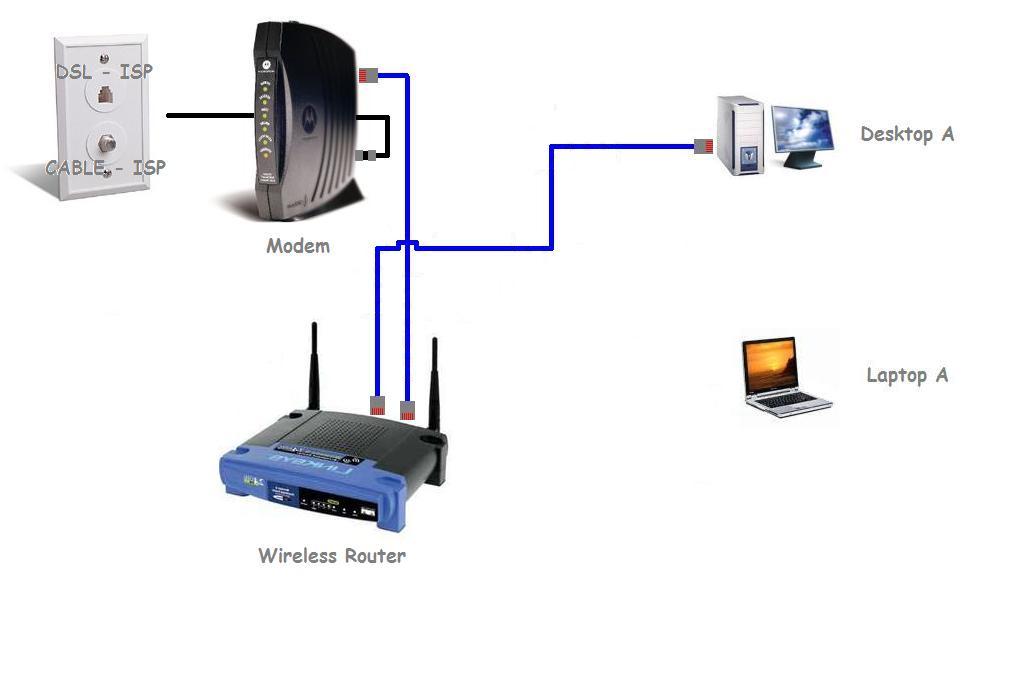
Automatic DHCP Physical Setup Instructions (Any OS) In this guide I will be using this Setup, as I have found the most common in residences. Important Note: If you need help setting up your “Wireless” Home network on one to ?? PC’s, please follow the steps below. Any Combination of Desktop or Laptop PC’s may be used in this setup, as long as you are able to connect one of the computers to the router with a Cat5 jumper. In this guide I will be using a minimum of one Hard Wired (Cat5) Computer (either Desktop or Laptop) and also one Laptop with a Built in Wireless card, as this is the most common setup in residences. 1. Turn off all the Computers. 2. Unplug Power from the Modem. 3. Unplug Power from the Wireless Router. 4. Connect the Modem to the wall plate using a coaxial Jumper for Cable, or CAT3 jumper for DSL. 5. Connect the Wireless Router (port WAN, WLAN, or Internet) to the Modem using a standard CAT5 Jumper. 6. Connect a standard CAT5 Jumper to Port 1 on the Router and connect the other end of the jumper to the Ethernet Port on the back of Desktop A. **The Ethernet port on a desktop or laptop has this symbol near it: 7. Plug Power into the Modem and wait for it to SYNC all the way up. 8. Plug Power into the Router and wait for it to SYNC all the way up. Go to Wireless Home Network OS Setup, for the next steps. |
||
|
|
Mar 13 2006, 09:44 PM
Post
#4
|
|||||||||||||||||||||||||||||||||||
![]() Trusted Tech Posts: 1,164 From: Oklahoma City, OK OS: Windows Vista Ultimate 64Bit |
Wireless Home Network OS Setup (1 to ?? PC’s)
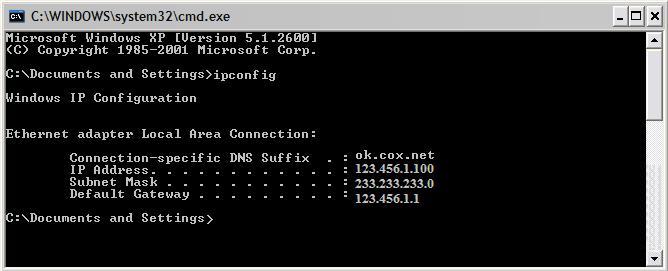
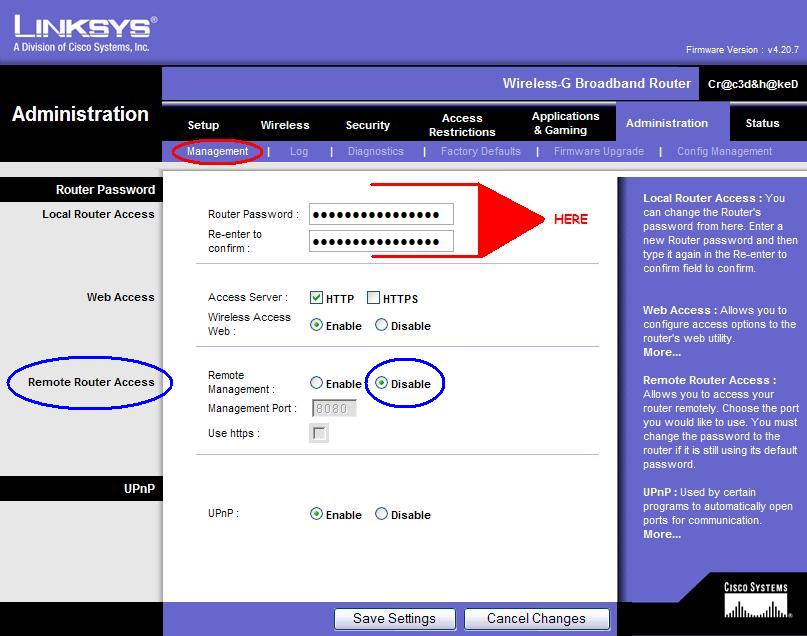
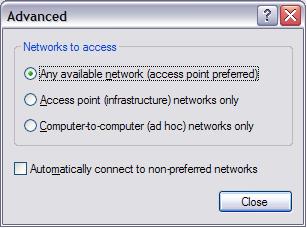
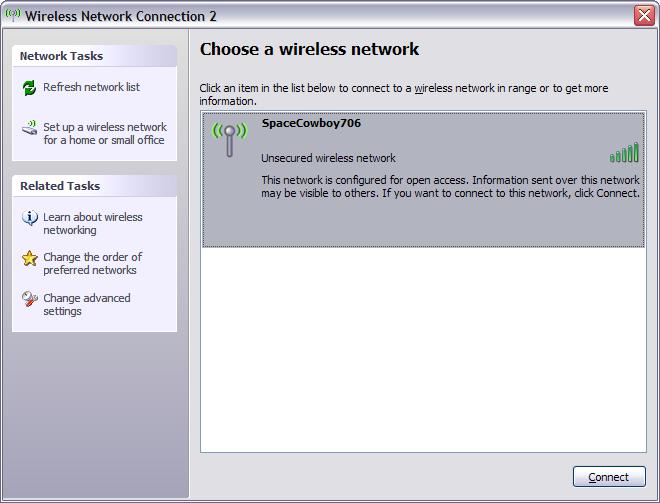
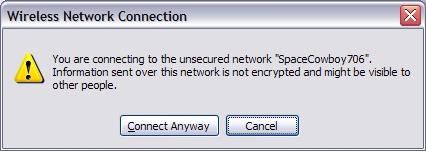
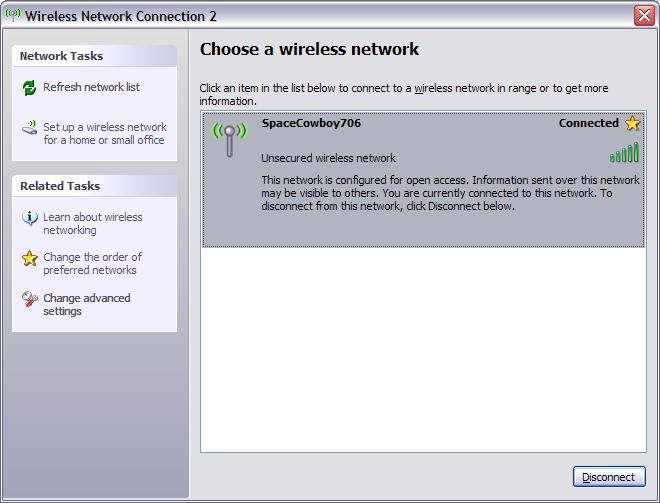
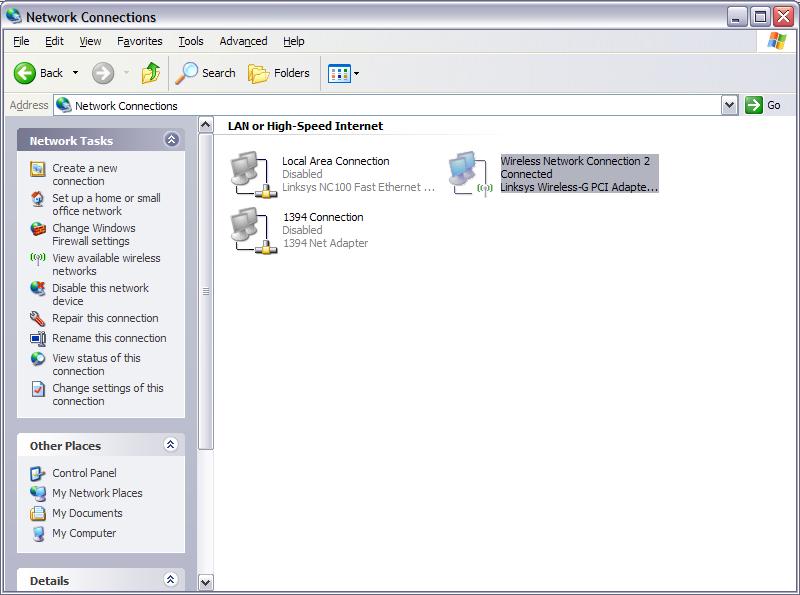
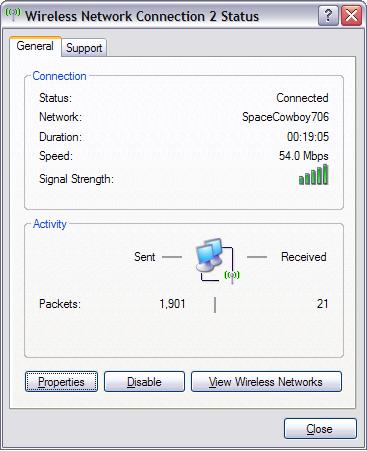
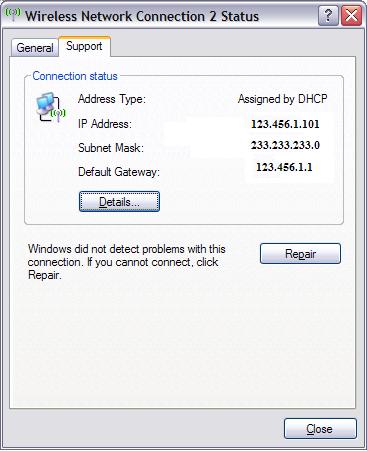
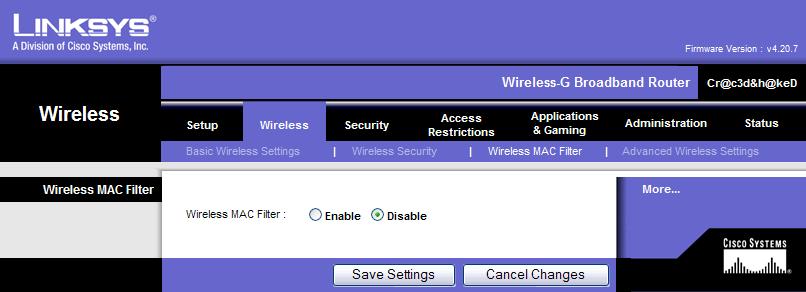
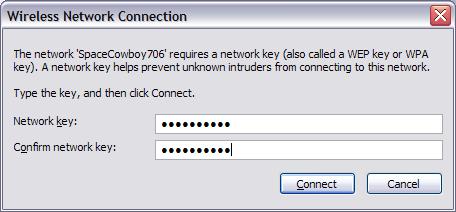
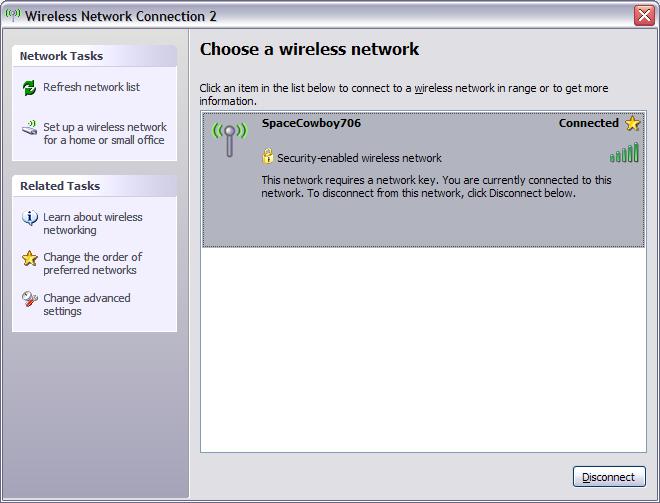
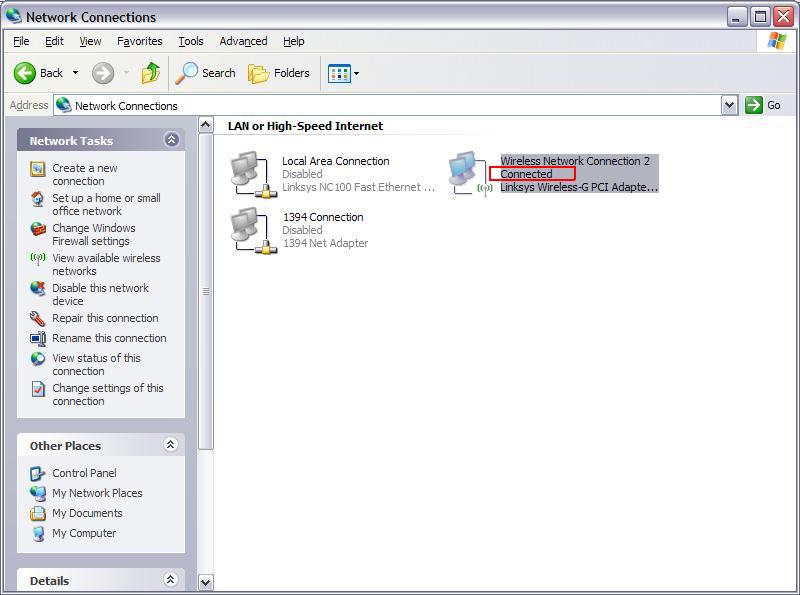
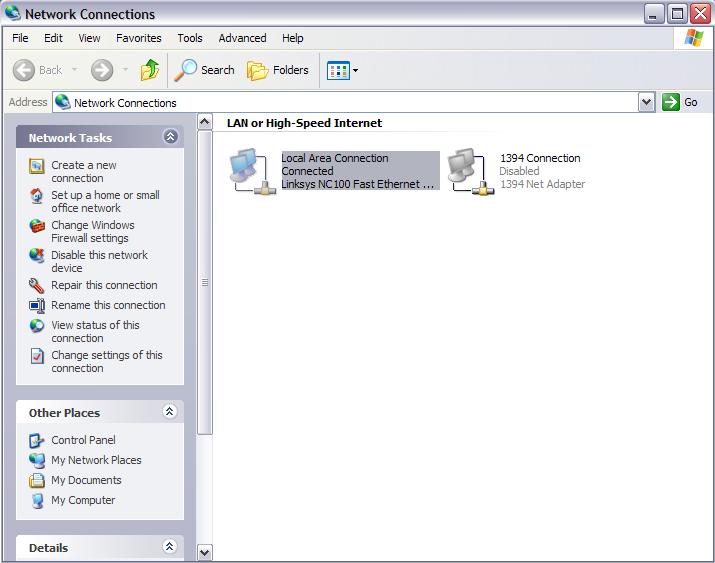
Windows XP and Automatic DHCP Operating System Setup Instructions (Windows XP) In this guide I will be using this Setup, as I have found the most common in residences. Important Note: If you need help setting up your “Wireless” Home network on 1 to ?? PC’s, please follow the steps below. Any Combination of Desktop or Laptop PC’s may be used in this setup, as long as one is connected with Cat5. Before completing steps 1 through 103 of this guide contact your Internet Service Provider and find out what Type of IP Configuration they recommend using (Example: DHCP, Static, PPOE) and then proceed to the steps below, if they recommend DHCP. Desktop A (HARD WIRED) 1. Turn Desktop A on (HARD WIRED PC) and wait for it to completely Boot. 2. Hold down the “Windows” key on the keyboard, and then press the “R” key on the keyboard. This opens the RUN Command. 3. Type in: devmgmt.msc :and press the OK button. This opens the Device Manager. 4. Scroll down to NETWORK ADAPTERS and expand the category by clicking on the “+” sign next to it 5. Verify that there are no “Yellow !’s” on the devices. If there are, please stop following this guide and submit a post in the forum requesting “Help Loading Network Card Drivers”. 6. Verify that there are no “RED X’s” on the devices. If there are, then Right Click on the device and select ENABLE. After enabling the device go back and check step 5, then proceed to step 7. 7. If there are no “RED X’s” or “Yellow !’s” on the devices then close out the Device manager by clicking on FILE in the Upper left, then select EXIT. 8. Hold down the “Windows” key on the keyboard, and then press the “R” key on the keyboard. This opens the RUN Command 9. Type in: ncpa.cpl :and press the OK button. This opens the Network Connections Window. 10. Locate your Connection Type (Ethernet) and right click on it to select PROPERTIES. 11. Click on the GENERAL tab 12. Under “This connection uses the following items:” make sure that only the following components have a check in the box next to them: - Client for Microsoft Networks - QOS Packet Scheduler - Internet Protocol (TCP/IP) 13. Left click on “Internet Protocol (TCP/IP)” one time and then click on the PROPERTIES button. 14. This opens the Internet Protocol (TCP/IP) Properties window. 15. Click on the GENERAL tab and verify that the bubbles for “Obtain an IP Address automatically” and “Obtain DNS server address automatically” are selected. 16. Click on the ALTERNATE CONFIGURATION tab and verify that the bubbles for “Automatic Private IP address” are selected. 17. Click the OK button. Taking you back to the “Local Area Connection Properties” screen. 18. Click the CLOSE button. Taking you back to the “Network Connections” window. 19. Right click on the same device again and select STATUS. Opens the “Local Area Connection Status” window. 20. Click on the SUPPORT tab 21. Click the REPAIR button, opening the ”Repair Local Area Connection” window 22. Click the “OK” or “CLOSE” button when it is done. Don’t worry if it says it can’t repair the Device. Taking you back to the “Local Area Connection Status” window 23. Verify that your ADDRESS TYPE is “Assigned by DHCP”. If it is not, then please submit a post in the forum asking for “Help enabling DHCP”. 24. Verify that your “IP Address” does not start with the prefix’s: 169 or, 172. If it does, then please submit a post in the forum asking for “Network Card has no connectivity”. 25. Click the GENERAL tab and under “Activity” verify that Packets Sent and received are both a “1” or Higher. If they are not then please submit a post in the forum asking for “Network Card has no connectivity”. 26. Click the CLOSE button. Taking you back to the “Network Connections” window. 27. Click on FILE in the upper Left and select CLOSE. 28. Hold down the “Windows” key on the keyboard, and then press the “R” key on the keyboard. This opens the RUN Command. 29. Type in: inetcpl.cpl :and press the OK button. This opens the Internet Options window. 30. Click on the SECURITY tab. 31. Under “Select a web zone to specify its security settings” change the “Internet, Local Internet, Trusted Sites, and Restricted sites” to default by selecting each Icon, then pressing the DEFAULT LEVEL button. If the Default button is grayed out, then it has already been applied and you need not worry about it. 32. Click on the PRIVACY button and under “Pop-Up Blocker” verify that the “Block Pop-Ups” box has a check in it. 33. Click on the CONTENT button and under “Content Advisor” verify that the ENABLE button says enable and not Disable. If it says Disable, then please submit a post in the forum asking for “How do I disable content Advisor”. 34. Click on the CONNECTIONS button and under “Dial-up and Virtual Private Network Settings” verify that nothing is listed. 35. Click on the ADVANCED tab and click the RESTORE DEFAULTS button, then the APPLY button and lastly the OK button. 36. Locate your Internet explorer Icon and double left click to launch. You now should be able to access the Internet. If you still cannot Access the internet then please submit a post in the forum asking for “Cannot access the internet”. 37. If you can access the Internet continue on: 38. Still using Desktop A, Hold down the “Windows” key on the keyboard, and then press the “R” key on the keyboard. This opens the RUN Command. 39. Type in: cmd :and hit the OK Button 40. When the Command Screen Appears, Type in: ipconfig :and hit ENTER 41. Copy Down your Default Gateway Address on a piece of paper, then minimize the Command Screen. 42. Launch your web browser and after the page loads, click on the Address bar and type in the Default Gateway address you wrote down. Hit enter 43. As the page loads, depending on the type of router used, you will get a pop-up that asks for your Username and Password. Here is a list of the most common routers and their default Usernames and passwords. After entering the correct information Hit ENTER or OK. Manufacturer..............Username.................Password Linksys ....................<leave blank>............admin Linksys.....................<leave blank>............epicrouter Linksys..........................admin...................admin Linksys..........................admin...................<leave blank> Netgear.........................admin....................password Netgear.........................admin....................1234 D-Link...........................admin....................<leave blank> D-Link...........................admin....................admin SMC..........................<leave blank>...........admin ZyXEL...........................admin...................<enter routers ip address> XSense.........................admin....................password Hawking........................admin....................1234 44. From Here on out I will be using the Linksys WRT54G, for my setup, as this is a very common router, and happens to be the one I am currently using. 45. Most router Web Browser Setup menu’s are pretty much the same in that they have these basic security functions that we will be using, so if your is not exactly the same then just follow the concept and apply it to your router. 46. After entering the correct username and password the Web Browser Setup will open and place you in the SETUP Screen. 47. The first thing we want to do is set a new Access Password, by clicking on the ADMINISTRATION Link, then the MANAGMENT Link and then entering our new password in the fields shown below. It is best to use a short phrase that is easy to remember instead of just one word. After it is entered. Click the Save button down at the bottom, then write it down somewhere in case you forget it. 48. While we are already on this screen we will add some security so we don’t have to come back to this screen later. Next to the REMOTE ROUTER ACCESS we want to click the bubble for DISABLE. Click the Save button down at the bottom, then write down your password and put it somewhere where it will not get lost. 49. Next click the SECURITY link and then the FIREWALL link. From here we want to click the Bubble to ENABLE the firewall and put a check in the boxes for “Block Anonymous Internet Requests, Filter Multicast, Filter NAT redirection, Filter Port 113”. Click the SAVE button at the bottom. 50. Now we want to turn on the Wireless portion of the router so we can move on to the Wireless LAPTOP A. 51. Click on the WIRELESS link, then on the BASIC WIRELESS SETTINGS link. 52. From here we want to click the drop down arrow for the Wireless Network Mode and select MIXED. Then we want to enter a name for our SSID Broadcast “Any Name Will Do” and write it down with your Router Password. Then we want to click the Bubble to ENABLE the SSID Broadcast When done click the SAVE button at the bottom, 53. After the selections are saved Click on the Wireless MAC Filter Link and STOP here and move to the Wireless LAPTOP A. Laptop A (WIRELESS) 54. Turn Laptop A on (WIRELESS PC) and wait for it to completely Boot. 55. Hold down the “Windows” key on the keyboard, and then press the “R” key on the keyboard. This opens the RUN Command. 56. Type in: devmgmt.msc :and press the OK button. This opens the Device Manager. 57. Scroll down to NETWORK ADAPTERS and expand the category by clicking on the “+” sign next to it 58. Verify that there are no Yellow !’s on the devices. If there are, please stop following this guide and submit a post in the forum requesting “Help Loading Network Card Drivers”. 59. From here we now want to disable the Wired Portion of the Pc and Enable the Wireless Portion. Right Click on you Wired Network Card and Select DISABLE, Then right click on your Wireless Network Card and Select ENABLE. Red X’s are now OK as they mean the Devices have been Disabled. 60. Now Click the FILE Button in the Upper Left and select EXIT. 61. Hold down the “Windows” key on the keyboard, and then press the “R” key on the keyboard. This opens the RUN Command. 62. Type in: ncpa.cpl :and press the OK button. This opens the Network Connections Window. 63. Locate your Connection Type (WIRELESS) and right click on it to select PROPERTIES. 64. Click on the GENERAL tab 65. Under “This connection uses the following items:” make sure that only the following components have a check in the box next to them: Client for Microsoft Networks QOS Packet Scheduler Internet Protocol (TCP/IP) 66. Left click on “Internet Protocol (TCP/IP)” one time and then click on the PROPERTIES Button. 67. This opens the Internet Protocol (TCP/IP) Properties window. 68. Click on the GENERAL tab and verify that the bubbles for “Obtain an IP Address automatically” and “Obtain DNS server address automatically” are selected. 69. Click on the ALTERNATE CONFIGURATION tab and verify that the bubbles for “Automatic Private IP address” are selected. 70. Click the OK button. Taking you back to the “Wireless Network Connection Properties” screen. 71. Now click the “Wireless Networks” tab Verify that there is a Check in the box for “Use Windows to configure my wireless network Settings”, Verify that there are no SSID Broadcasts listed in the PREFERRED NETWORKS box (if there is select it and click the REMOVE button). 72. Click the ADVANCED button and click the bubble for “Any Available Network (Access point Preferred)” then click the close button. Taking you back to the “Wireless Networks Connection Properties” window. 73. Under “Available Networks” click the “VIEW WIRELESS NETWORKS” button, and left click on your SSID broadcast and click the Connect Button. 74. You will now get a pop-up like the one below. Just click YES, as we will add security Later. 75. After a few seconds the list will refresh and it will say “Acquiring Network Address” then it will say “Connected” like this 76. Now click the close button or red x in the upper right hand corner, taking you back to the “Network Connections” Window 77. Now we want to Right click on the Wireless device and select STATUS, then the GENERAL tab. From here we want to verify that under “Activity” the Packets Sent and Received number is 1 or above. If it is not then please submit a post in the forum requesting “No Wireless Connectivity”. 78. Next click on the SUPPORT tab and verify that the “Address Type” is Assigned by DHCP. Click the CLOSE Button, taking you back to the “Network Connections” window. Close this window out now also. 79. Restart the Laptop 80. After the Laptop Boots up, launch internet explorer and see if you can get on the internet. If you cannot then please submit a post in the forum requesting “No Wireless Connectivity”. If you can then Move on to the Security setup next. 81. Move back to Desktop A (Hard Wired) Desktop A (HARD WIRED) 82. We still should be sitting at the “MAC Address Filter” Screen. 83. Now we want to click the Bubble to ENABLE the Wireless MAC Filter, and “Permit only PC’s Listed to Access the Wireless Network” 84. Now click the EDIT Mac Filter List button, to launch a pop-up. 85. Now click the “Wireless Client MAC List” and put a Check in the box next to your Device for “Enable MAC Filter” and click the UPDATE FILTER LIST button. 86. taking you back to the “MAC Address Filter List” Window which will now have your Mac address already entered for you. Just click the Save Settings button at the bottom. 87. Now move back to the wireless Laptop A Laptop A (WIRELESS) 88. Restart the Computer 89. After the computer boots verify that you can access the internet. If you cannot then please submit a post in the forum requesting “No Wireless Connectivity after setting Mac Filter”. 90. If you can then move back to the wired Desktop A. Desktop A (HARD WIRED) 91. With the Routers Browser sewtup still open from the last steps we want to now click on the WIRELESS link and then the WIRELESS SECURITY link. 92. From here want to click the drop down arrow for SECURITY MODE and select WEP. Then click the 1st DEFAULT TRANSMIT KEY bubble, then enter a catchy PASSPHRASE in the space provided and click the GENERATE button. This will automatically fill in the “Key 1, 2, 3, and 4” spaces. We want to copy down “Key 1” on a piece of paper for later use. 93. Now click the SAVE button at the bottom. And then close out your Internet Web Browser. 94. Time to move back to wireless Laptop A. Laptop A (WIRELESS) 95. As you may notice we have now lost connectivity. 96. Hold down the “Windows” key on the keyboard, and then press the “R” key on the keyboard. This opens the RUN Command. 97. Type in: ncpa.cpl :and press the OK button. This opens the Network Connections Window. 98. Right click on your wireless device and select VIEW AVAILABLE WIRELESS NETWORKS. 99. Next click on your SSID Broadcast and click the “Connect” Button and you will get a prompt asking for a network key. 100. Enter in the “Key 1” you wrote down from step 92 into both lines and then click the CONNECT button. After it is done connecting and acquiring an IP Address you will be brought back to the “Wireless Network Connection” screen. 101. You can now close this screen out by pressing the close button (red x) in the upper right of the screen. 102. Now we are back at the Network Connections window. Verify that your Wireless Device says “Connected” as mine does. If it does not then please submit a post in the forum requesting “No Wireless Connectivity after setting WEP”. If it does then go ahead and close out this screen as well. 103. Launch your internet browser and see if you can now surf the web. If you cannot then please submit a post in the forum requesting “No Wireless Connectivity - Device shows connected”. If it does… then Happy surfing. If interested in Sharing Files and Printers see the guide for “File and Print Share Setup” |
||||||||||||||||||||||||||||||||||
|
|
Mar 13 2006, 10:07 PM
Post
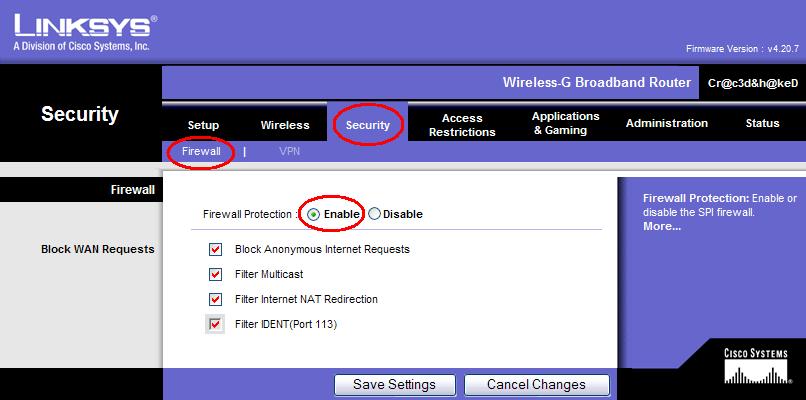
#5
|
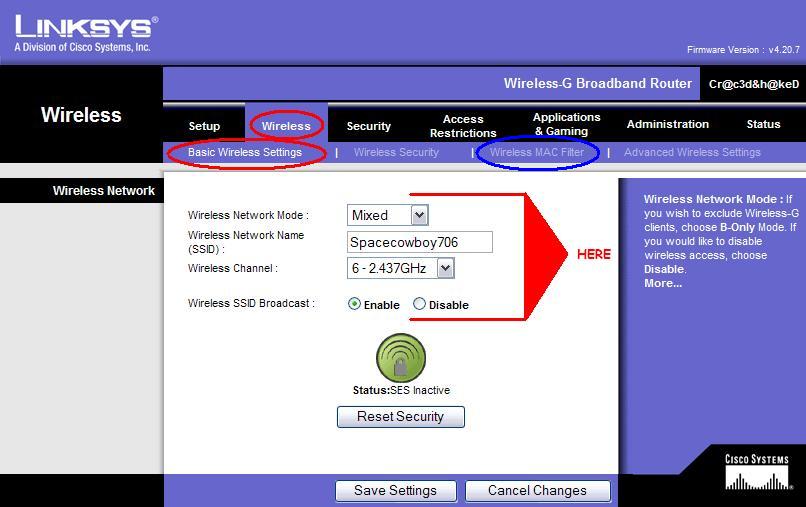
|||||||||||||||||||||
![]() Trusted Tech Posts: 1,164 From: Oklahoma City, OK OS: Windows Vista Ultimate 64Bit |
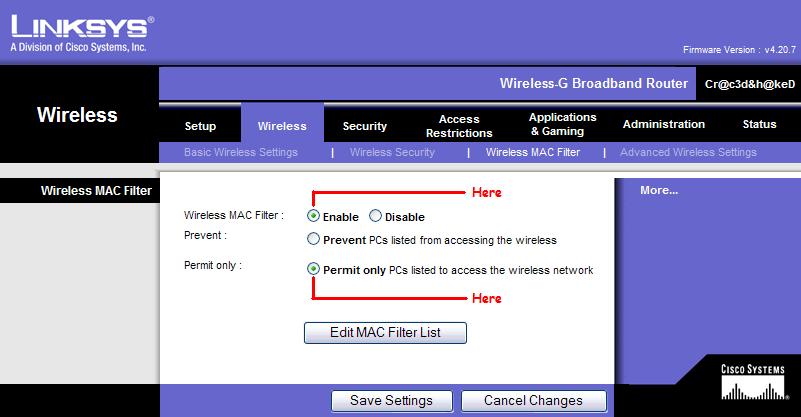
File and Print Share Setup
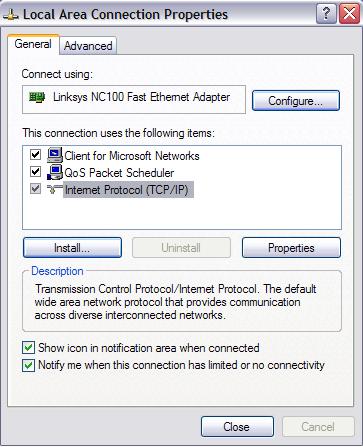
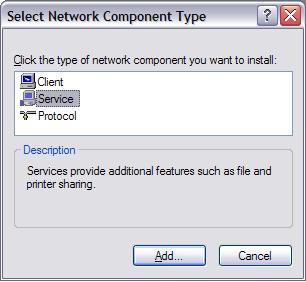
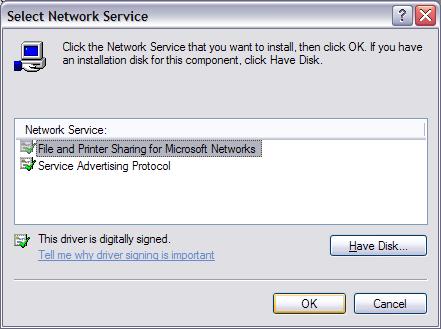
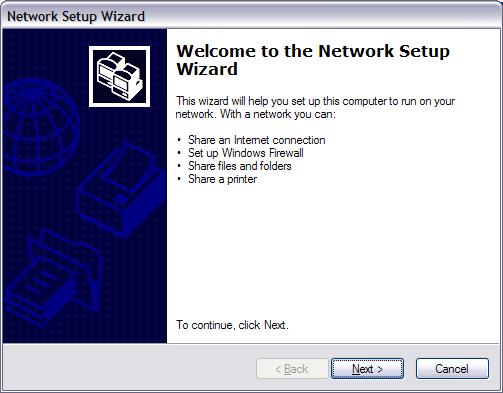
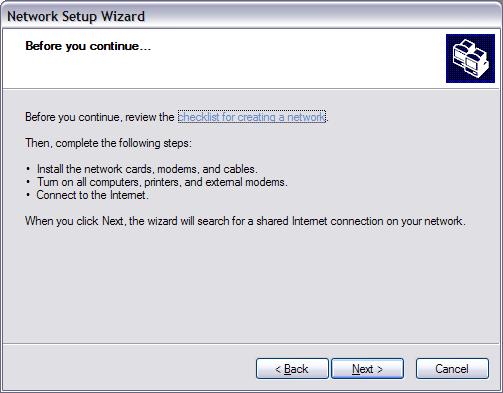
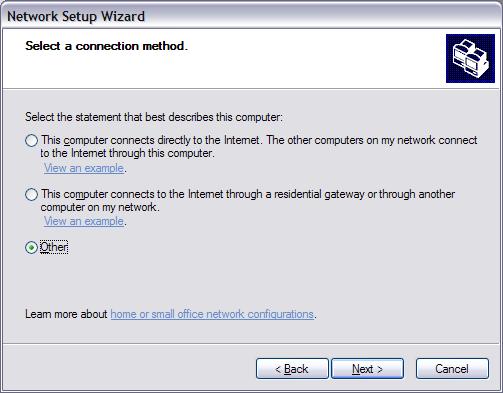
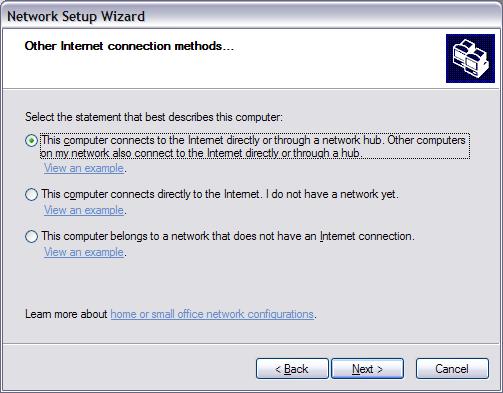
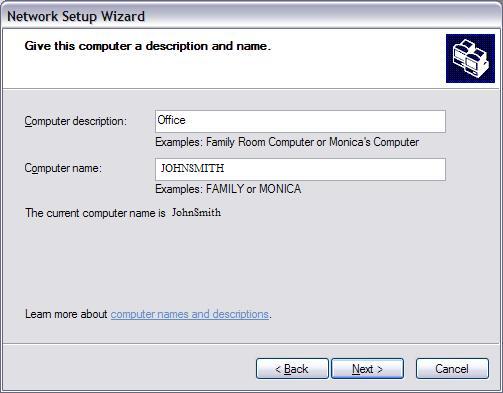
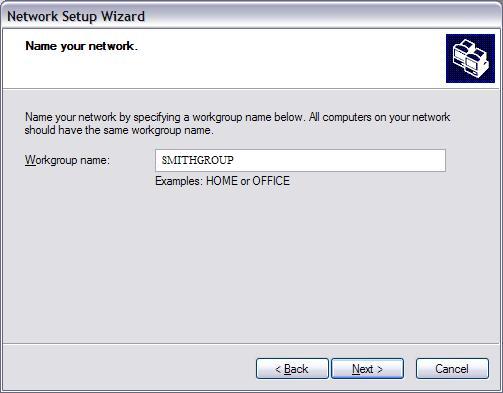
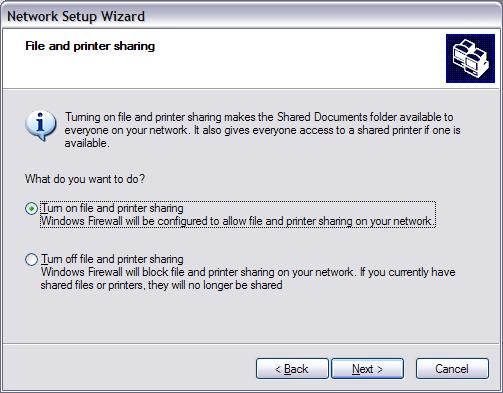
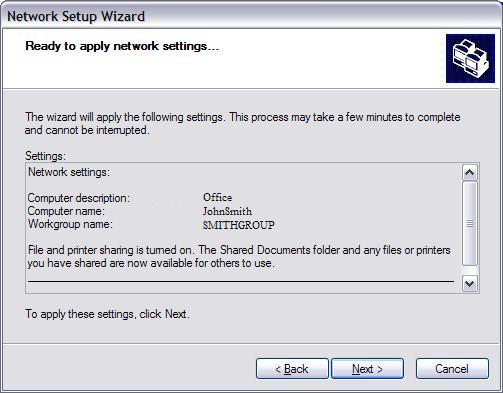
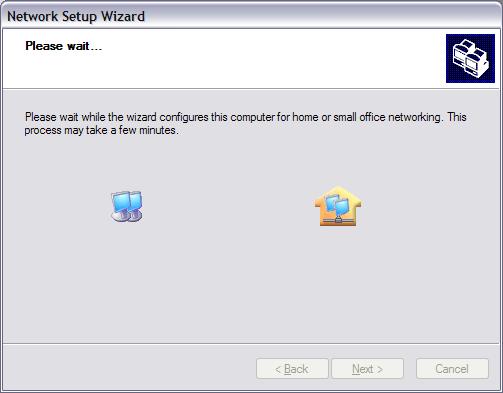
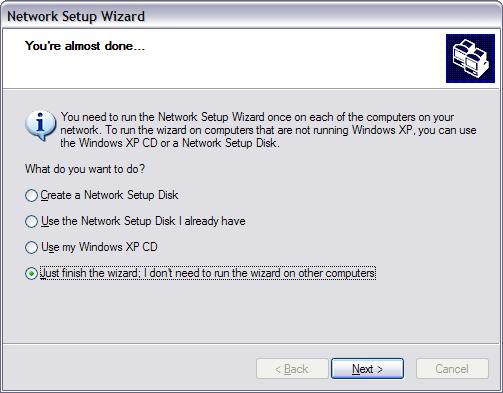
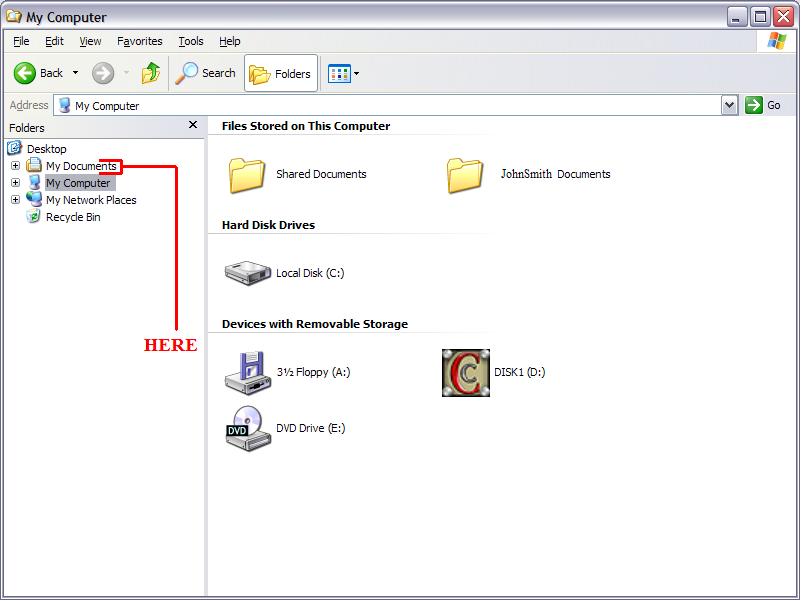
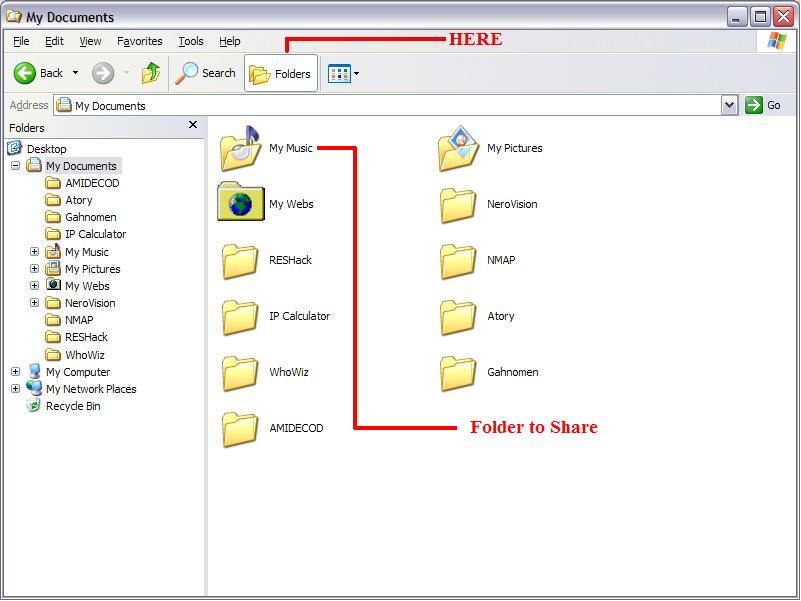
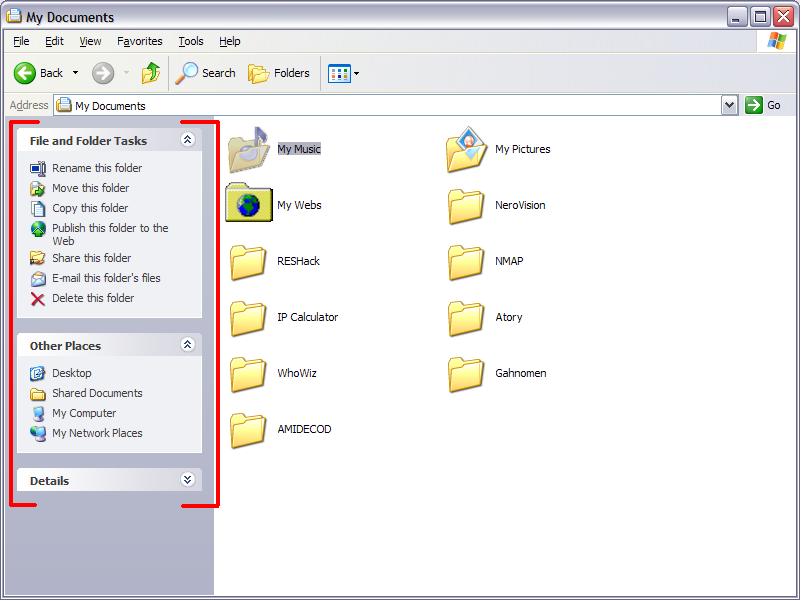
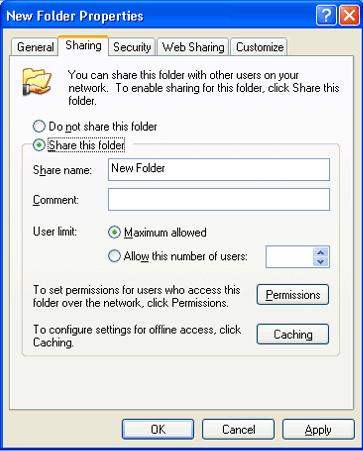
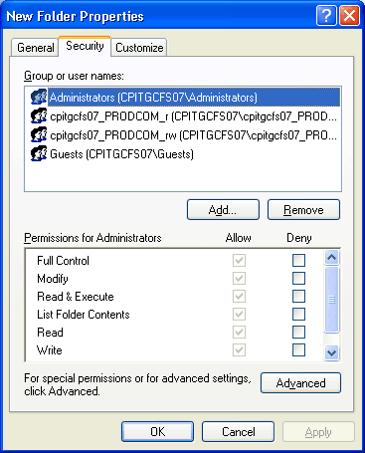
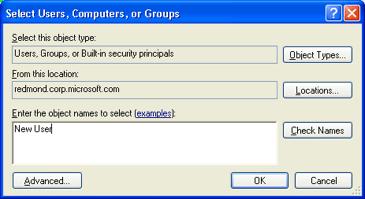
Windows XP File Share Important Notes to read before configuring the File share portion of your Network 1. You can set file and folder permissions only on drives formatted to use NTFS. 2. To change permissions you must be the owner, or have been granted permission to do so by the owner. (owner referring to Administrator account) 3. Groups or users granted Full Control for a folder can delete files and subfolders within that folder regardless of the permissions protecting the files and subfolders. 4. The Sharing option is not available for the Documents and Settings, Program Files, and Windows system folders. In addition, you cannot share folders in other users’ profiles. 5. People from outside your Network can access your shared resources, if you do not have Windows SP2 and also a Firewall (either Windows or a Third Party Vendor). Follow these steps to Install and correctly setup FILE sharing on your Network. 1. Close out all applications and running programs (including Third party Firewalls, Security Suites, and Virus Detectors) 2. Hold down the “Windows” key on the keyboard, and then press the “R” key on the keyboard. This opens the RUN Command. 3. Type in: ncpa.cpl :and press the OK button. This opens the Network Connections Window. 4. Locate your Connection Type (Ethernet) and right click on to select PROPERTIES. 5. Click on the GENERAL tab. 6. Click the INSTALL button. To launch the “Select Network Component Type” window. 7. Click the ADD button. To launch the “Select Network Service” window. 8. Highlight the “File and Printer Sharing for Microsoft Networks” and click the OK button 9. You should now be back at the “Local Area Connection Properties” window. ..........9A. Click Internet Protocol (TCP/IP), and then click the "Properties" button. ..........9B. Click the General tab, and then click Advanced. ..........9C. Click the WINS tab. ..........9D. Under NetBIOS setting, click "Enable NetBIOS over TCP/IP", and then click OK two times. ..........9E. Click Close to close the Local Area Connection Properties dialog box. 10. You should now be back to the “Network Connections” window. 11. Close this window. 12. Hold down the “Windows” key on the keyboard, and then press the “R” key on the keyboard. This opens the RUN Command 13. Type in: netsetup.cpl :and press the OK button. This opens the Network Setup Wizard. 14. When the Network setup wizard appears click "Next" 15. When the second page appears click "Next" 16. When the third Page appears select the "Other" bubble and click "Next” 17. When the fourth page appears select the bubble "This computer connects directly or through a network Hub. Other computer on my network also connect to the internet directly or through a hub." 18. When the fifth page appears under "Computer description" type in Location, and click "next" 19. When the sixth Page appears under "workgroupe name" type in: <lastname>group :< >insert your last name followed by group and click "next". 20. When the seventh page appears select the "Turn on File and Print Sharing" Bubble and click "next". 21. The next Screen will verify all the settings you have made. Just Click NEXT. 22. You will get a screen with Files moving back and forth like this. 23. When the warning comes up asking if you’re sure you want to turn on file and print sharing just select "yes 24. When the next page appears select the bubble for "Just finish the wizard" and click on "Next" 25. When the next screen appears just select "Finish" 26. Click YES when it asks if you want to reboot your computer 27. After Rebooting, again close out all applications and running programs (including Third party Firewalls, Security Suites, and Virus Detectors). 28. Right Click on the START bar and select EXPLORE to open windows explorer. 29. Click on the MY DOCUMENTS link. 30. Select the folder you want to Share 31. Click the FOLDER icon at the top 32. And the sidebar changes like this. 33. In the File and Folder Tasks Menu (to the Left), click on “Share this Folder” 34. In the Folder Properties dialog box select the bubble “Share this Folder” to share the folder with other users on your network 35. To change the name of the folder on the network, type a new name for the folder in the “Share Name” text box. This will not change the name of the folder on your computer. 36. Click the APPLY and OK button 37. Right Click on the Same Folder again and select Properties, then click on the SECURITY tab. 38. To change or remove permissions from an existing group or user, click the name of the group or user and do one of the following: To allow or deny a permission, in the “Permissions for”...box, select the “Allow” or “Deny”check box. To remove the group or user from the “Group or Usernames” box, click “Remove”. 39. To set permissions for a group or user that does not appear in the Group or user names box, click Add. Type the name of the group or user you want to set permissions for and then click OK 40. Click the Ok button when Done ..........40A. Hold down the “Windows” key on the keyboard, and then press the “R” key on the keyboard. This opens the RUN Command ..........40B. Type in: services.msc :and press the OK button. This opens the Local Services Window. ..........40C. In the right pane, right-click "Computer Browser", and then select "Properties". ..........40D. In this dialogue box you want to change the Startup Type to "Automatic" and then click the START button inside the window. ..........40E. Click the Apply button and then the OK button. ..........40F. Close out the Local Service Window 41. Close out all windows and Restart the Computer. 42. Perform these same steps (1 through 40) on Desktops B, C, and Laptop A. Then continue on to with Step 43. 43. Aftter completing Step 42 Return to Desktop A and Close out all applications and running programs (including Third party Firewalls, Security Suites, and Virus Detectors) 44. Now go to Desktop B, C and Laptop A and Close out all applications and running programs (including Third party Firewalls, Security Suites, and Virus Detectors) 45. Return to Desktop A and Right Click on the START bar and select EXPLORE to open windows explorer. 46. Click on the MY DOCUMENTS link. 47. In the Left Folder Pane scroll down near the Bottom and Click on MY NETWORK PLACES. 48. Right click on your shared folder and Select Copy 49. Close out the window and navigate to an open area on your desktop and right click to select “Paste Shortcut”. Now you can access your shared Folder easily. 50. If the Folder that you selected to share is not there then Press F5 to refresh the list. If the folder still does not show up, Click the Folder Button on the top Row. 51. On the Left Pane again, Click on the “View Workgroup Computers” link. 52. If you can see the other computers then Click on them and navigate to your shared folder and follow step 48 through 49 for setting up access to them. 53. If you still cannot see them then, click on TOOLS at the very top and select “Map Network drive” 54. In the “Folder:” box type in the following \\computername\sharedfoldername. Where computername is the name of the computer and sharedfoldername is the name of the shared folder. 55. Click the “Finish” button. This should open the Shared folder. If it does then follow step 48 through 49 for setting up access, to them. 56. If it does not then Close out all windows and repeat steps 45 through 55 on Desktops B, C, and Laptop A. 57. If you are still unable to share or see other computers on your network then please submit a post in the forum for “Cannot access Network Computers” 58. If you can, then move on to the next section for Enabling Printer Sharing. This post has been edited by admin: Aug 20 2007, 10:05 AM |
||||||||||||||||||||
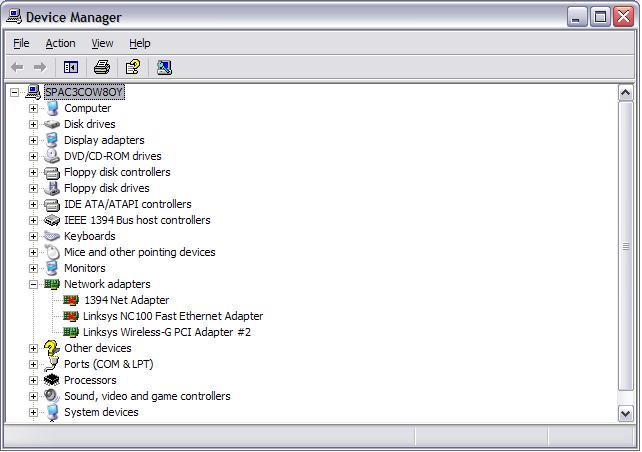
|
|
Mar 13 2006, 10:16 PM
Post
#6
|
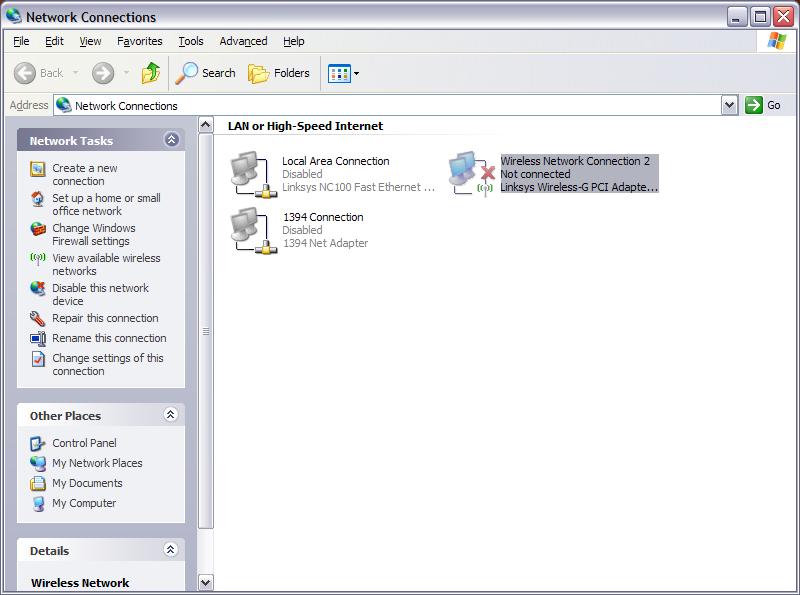
||||||
![]() Trusted Tech Posts: 1,164 From: Oklahoma City, OK OS: Windows Vista Ultimate 64Bit |
File and Print Share Setup
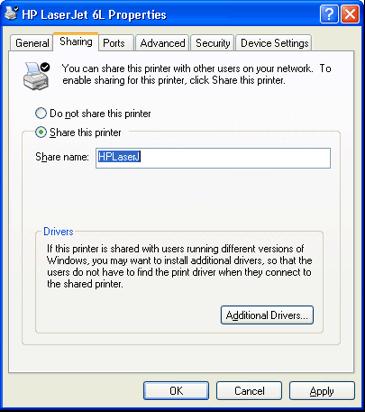
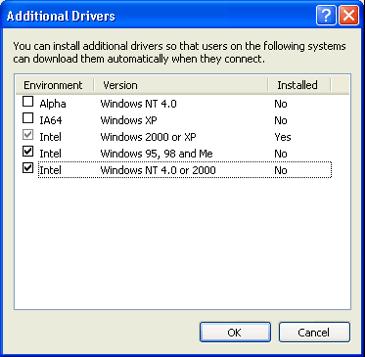
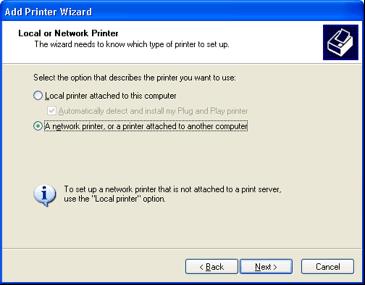
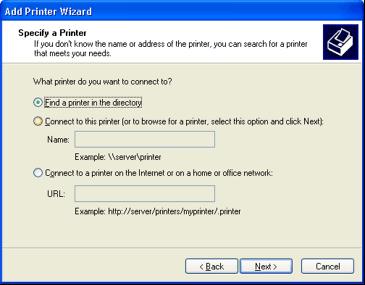
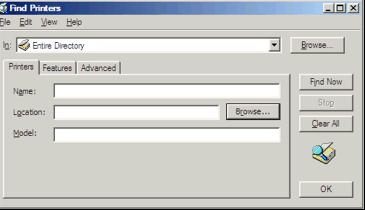
Windows XP Print Share Important Note to read before configuring the Print share Portion of your Network HP’s “All-In-One” series printers can be sometime difficult to get to work on the network Follow these steps to Install and correctly setup PRINT sharing on your Network. 1. On the Computer where the Printer is printer is physically attached, Close out all applications and running programs (including Third party Firewalls, Security Suites, and Virus Detectors) 2. Hold down the “Windows” key on the keyboard, and then press the “R” key on the keyboard. This opens the RUN Command. 3. Type in: control panel :and press the OK button. This opens the Control Panel. 4. Click on the Link for “Printers and other Hardware” 5. Click on the Link for “Printers and Faxes” 6. Locate the printer you want to share and right click on it and select “Sharing” 7. Click the “Sharing” Tab 8. Click “Share this Printer” and then type in a shared Name for the printer. 9. If you share the printer with others using different hardware or different operating systems, click “Additional Drivers”. 10. Click the Environment and operating system for the other computers, and then click “OK” to install the additional drivers. 11. Click “OK”, or, if you have installed additional Drivers click “Close”. 12. Close out all windows and move to any of the other computers (desktop or laptop) located on the network. 13. Now to access you Shared Printer, Hold down the “Windows” key on the keyboard, and then press the “R” key on the keyboard. This opens the RUN Command. 14. Type in: control panel :and press the OK button. This opens the Control Panel. 15. Click on the Link for “Printers and other Hardware” 16. Click on the Link for “Printers and Faxes” 17. Under “Printer Tasks” Click on the “Add Printer” link and then click Next. 18. Select the bubble for “A network printer or, a printer attached to another computer” and then click “Next”. 19. Click “Find a printer in the directory”, and then click “Next”. 20. Click the “Browse” button to the right of ‘Location’, click the printer location, and then click ‘OK’. 21. Click ‘Find Now”. 22. Click the printer you want to connect to, and then click “OK”. 23. Now you Shared and Networked Printer should be showing up in your “printers and Faxes” window. If it is then move on to another computer in the network and repeat steps 2 through 22, for that computer and so on. 24. If it is not showing up try restarting Both the Original Computer with the Printer attached and also the computer you are trying to connect with. Again make sure to close out all applications and running programs (including Third Party Firewalls, Security Suites, and Virus Detectors). 25. With Both PC’s restarted see if the networked printer is showing up in “Printers and Faxes” 26. If it is not showing up then please submit a post in the forum for “Cannot Access Network Printer” This concludes my Guide for File and printer sharing on windows XP. Any Questions or Problems please submit a Post in the Forum. |
|||||
|
|
Jan 14 2007, 10:57 AM
Post
#7
|
|
![]() Member ![]() ![]() ![]() Posts: 182 From: Revere, Mass. OS: Windows Vista SP1 |
I've been following SpaceCowboy706 tutorial ( http://www.geekstogo.com/forum/Home-Networking-and-Printer-File-Sharing-t102163.html )on how to setup file and print sharing on a network but I'm having some trouble with it. For file sharing, once I get to step seven where it says "Click the ADD button. To launch the “Select Network Service” window." and then "Highlight the “File and Printer Sharing for Microsoft Networks” and click the OK button"... well I don't have the ability to highlight that because it's not listed. So what do I do about that? And then, for printer sharing there are two little problems. One is when I get to step 9 and it comes to installing additional drivers, I can't do so. The other computer is a diffrent version of Windows so I believe I need to install additional drivers but it won't let me. The second problem is that when on the other computer trying to browse for the printer, nothing comes up. All thats there is "Microsoft Windows Network" and "WorkGroup". What is to be done about this? Please give me a hand someone. Thank you
|
|
|
Jan 15 2007, 11:39 AM
Post
#8
|
|
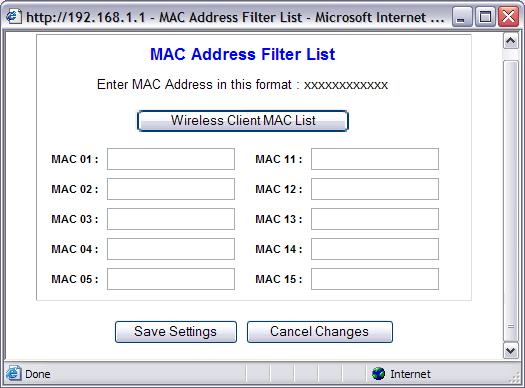
![]() Grammar Department Administrator Posts: 11,617 From: Maryland USA OS: Windows XP Pro SP2/Windows Vista Business/Windows SBS 2003 |
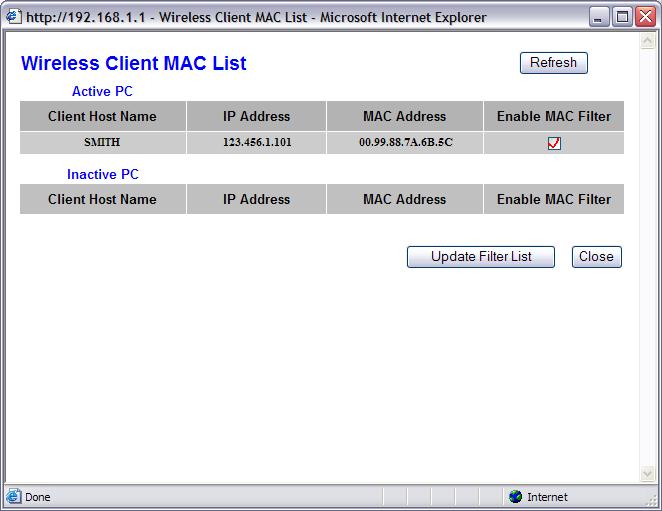
Pianoman16,
This topic is left open for comments, but no help is provided here. I would start by asking for help in the Windows XP forum on getting this set up properly. sari |
|
|
Jan 26 2007, 01:02 PM
Post
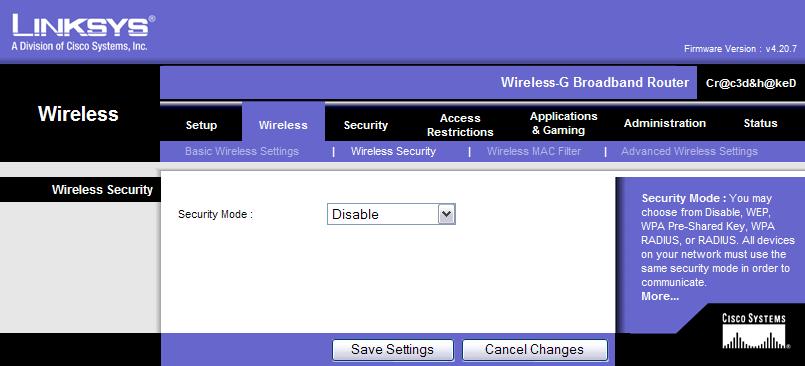
#9
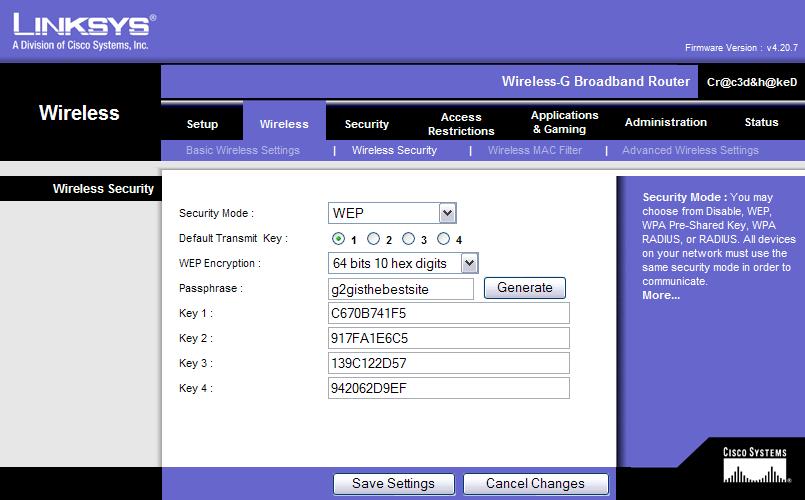
|
|
![]() New Member ![]() Posts: 2 From: Hawaii OS: Windows XP, Linux |
Awesome tutorial!!
Never seen anyone explain it this well, especially with pictures and diagrams. Keep up the good work, and hope to see more tutorials like this in the future. |
|
|
Feb 6 2007, 01:26 PM
Post
#10
|
|
|
Member ![]() ![]() Posts: 27 OS: Windows XP |
I have 2 desktops. One is the hard line, the other has a usb adapter (both Linksys) and 3 laptops already wireless capable. They are all XP. I had no problem setting it up when I first got it and all computers are on the network with a key. But now, trying to figure out the file and printer sharing from there, it seems nothing will work. I followed the guide you had posted, but was not sure if I need to reset the router and start over to make it all work?
|
|
|
Feb 6 2007, 03:09 PM
Post
#11
|
|
![]() Grammar Department Administrator Posts: 11,617 From: Maryland USA OS: Windows XP Pro SP2/Windows Vista Business/Windows SBS 2003 |
This topic is left open for comments, but no help is provided here. I would start by asking for help in the Networking forum on getting this set up properly.
sari This post has been edited by sari: Feb 6 2007, 03:12 PM |
|
|
Feb 10 2007, 04:24 AM
Post
#12
|
|
|
Member ![]() ![]() ![]() Posts: 693 From: The Land of SuperHeroes. OS: Windows Vista Home Premium, XP Pro SP2, FreeBSD, CentOS |
One thing people miss out a lot but does make a change in most cases is..
Open IE > Tools > Internet Options > Connecitons > LAN Settings > *TICK* Automatically Detect Settings. |
|
|
Feb 10 2007, 07:59 AM
Post
#13
|
|
|
Member ![]() ![]() Posts: 27 OS: Windows XP |
Thank You. That worked, when I put in the "default gateway" from my laptop to the wireless desktop in my room and it recognized the computer , but it wants a user name and password that I don't have. ??? So close, yet so far!
This post has been edited by ftballtw: Feb 10 2007, 08:00 AM |
|
|
Feb 20 2007, 12:28 AM
Post
#14
|
|
|
Member ![]() ![]() Posts: 12 From: St. Louis, MO OS: XP and 98 |
i I am not sure i am doing the install "select network component" correctly.
(on the network connections, is says click in the general tab to click install, but it was not mentioned what should be highlighted, and then when you click "add" what should be highlighted.) Definately very descriptive, but my networking is still not set up. boo hoo This post has been edited by ColeEdwards: Feb 20 2007, 02:34 PM |
|
|
Feb 22 2007, 08:42 AM
Post
#15
|
|
![]() Grammar Department Administrator Posts: 11,617 From: Maryland USA OS: Windows XP Pro SP2/Windows Vista Business/Windows SBS 2003 |
ColeEdwards,
This thread is left open for comments, but no help is offered here. If you're still having problems, I suggest you post in our Networking forum. |
|
|
![]() ![]() |
Similar Topics
| Topic Title | Replies / Views | Topic Information | |||||
|---|---|---|---|---|---|---|---|
![]() |
11 / 1,076 | 29th June 2006 - 09:47 PM Listerofsmeg started - last by Listerofsmeg |
|||||
![]() |
1 / 806 | 26th July 2006 - 04:57 PM dunebug81 started - last by SpaceCowboy706 |
|||||
![]() |
0 / 638 | 15th January 2007 - 03:39 PM Pianoman16 started - last by Pianoman16 |
|||||
![]() |
2 / 1,855 | 9th February 2008 - 02:54 PM hockey2112 started - last by hockey2112 |
|||||
|
Time is now: 4th July 2009 - 04:10 AM |
Advertisements do not imply our endorsement of that product or service. The forum is run by volunteers who donate their time and expertise. We make every attempt to ensure that the help and advice posted is accurate and will not cause harm to your computer. However, we do not guarantee that they are accurate and they are to be used at your own risk. All trademarks mentioned on this page are the property of their respective owners.