

Welcome Guest ( Log In | Register )

Discover the best free computer help!
Learn more about Geeks to Go by taking the tour. Spyware, virus, trojan, fake security or privacy alerts? Read the malware cleaning guide.
      
2 Pages V   1 2 >  
Reply to this topicStart new topic
Remove the Language Bar
Smokey
post Aug 5 2004, 06:21 PM
Post #1


Member 1K
****
Posts: 1,403
From: San Antonio, TX, USA
OS: Windows XP Home SP2


You know that little thing near the clock, the one with the question mark in the yellow circle? That's called the "Language Bar". Even if you take the toolbar off the taskbar, it will come back everytime you start an Office application, you need to do this to not see that little nag called the "Language Bar" again:

1. Click"Start", then "Control Panel"
2. Hit "Date, Time, Language, and Regional Options", then "Regional and Language Options"
3. Press "Languages" tab, then "Details" button
4. Choose "Langage Bar" button at bottom, and then uncheck "Show the language bar on the desktop"
5. Press "OK" and the Language Bar will be gone smile.gif

Note: You can always just recheck to enable it again

If you really want it gone so you can't ever see it again:

1. Go to "Start", then "Run"
2. Type "Regsvr32.exe /u msutb.dll" and press enter
3. The Language bar will never bother you again! spoton.gif

Note: The "Language Bar" button described above will be grayed-out (unaccessible) for good as well, meaning you can never renable it.
Go to the top of the page
 
+Quote Post
therealcote
post Sep 20 2005, 02:16 PM
Post #2


New Member
*
Posts: 2
OS: XP


Hi,
Contrary to the above person, I DON'T want to disable my language bar. I use it a lot everyday, but it disappeared yesterday and the language bar button is grayed out and disabled.

Does someone know how I can enable it again?

thanks a lot

Mathieu Cote
Go to the top of the page
 
+Quote Post
dsenette
post Sep 20 2005, 02:24 PM
Post #3


Ruler of Omicron Persei 8
Group Icon
Posts: 20,306
From: kn-ARGH!-xville Tenn-ARGH!-see
OS: 3.1, 95, 98SE, xp, 2000, NT4, 2003 Standard Edition, linux (various flavors)


you can also right click on the taskbar and go to toolbars and pick the language bar
Go to the top of the page
 
+Quote Post
therealcote
post Sep 20 2005, 04:42 PM
Post #4


New Member
*
Posts: 2
OS: XP


No, I know all this.

But my problem is:
the ctfmon.exe file closes itself whenever I click ok it the language bar dialog box in the Config Panel

I found something about it on MIcrosoft's website (http://support.microsoft.com/default.aspx?scid=kb;en-us;819783&Product=winxp)

but they say that SP2 fixes this problem (it doesn't for me...)
and that an hotfix is available... but I would have to pay to contact Microsoft support....

I tried everything that is on the Microsoft page... but it didn't work

any idea?

Mathieu
Go to the top of the page
 
+Quote Post
leonpadi
post Oct 13 2005, 02:45 AM
Post #5


New Member
*
Posts: 3
OS: win xp sp2 english


Exactly same problem with me too. The language bar is disappeared, without explanation-reason, although i tried all the known solutions...
Any help?
Go to the top of the page
 
+Quote Post
hats_off
post Oct 13 2005, 03:32 AM
Post #6


Retired Staff
Group Icon
Posts: 2,512
From: England
OS: Windows 98SE XP Pro SP2 Office 2003 Pro XP Home SP2 Office XP Pro


Have you checked the language is the same in regional options and also the keyboard setting

Go to the top of the page
 
+Quote Post
leonpadi
post Oct 13 2005, 03:53 AM
Post #7


New Member
*
Posts: 3
OS: win xp sp2 english


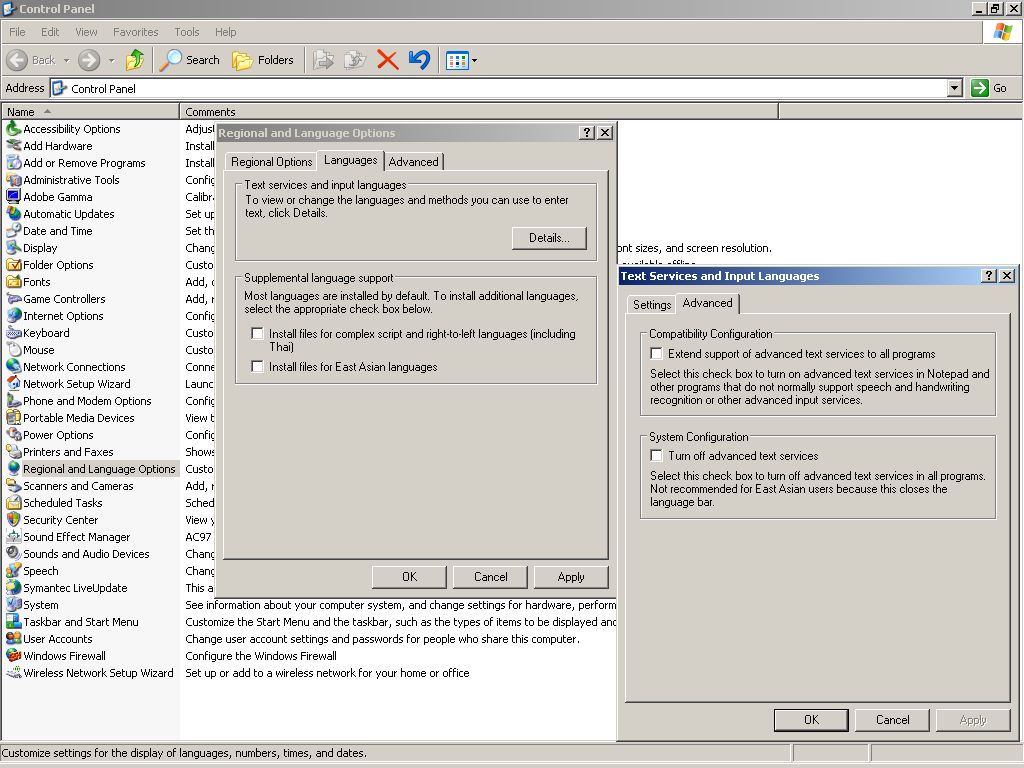
Guys, i think i found a partial solution, please therealcote check this screenshot, yours must be as mine..check it out and tell us...
Attached thumbnail(s)
Attached Image
 
Go to the top of the page
 
+Quote Post
hats_off
post Oct 13 2005, 04:00 AM
Post #8


Retired Staff
Group Icon
Posts: 2,512
From: England
OS: Windows 98SE XP Pro SP2 Office 2003 Pro XP Home SP2 Office XP Pro


Put a tick in extend text services to all programmes

Go to the top of the page
 
+Quote Post
leonpadi
post Oct 13 2005, 04:01 AM
Post #9


New Member
*
Posts: 3
OS: win xp sp2 english


ok! Thanks for immediate replies!!!
Go to the top of the page
 
+Quote Post
beariebird
post Jan 10 2006, 09:22 AM
Post #10


New Member
*
Posts: 1
OS: Windows Server 2003


Also contrary to both above people, I would like totally disable the Language Bar at install. Using the Office Toolkit Resource, is there a way to do this?

Thanks!
Go to the top of the page
 
+Quote Post
jordi nyc
post Mar 25 2006, 04:30 AM
Post #11


New Member
*
Posts: 1
OS: XP


Not to blatantly "me too" but I just want to emphasize that simply disabling it by right clicking, Settings, Advanced Tab, and checking Turn Off Adv Text Services ONLY WORKS FOR THE CURRENT USER! Any user that logs on that PC afterwards WILL get the Language Bar. Unless you have 20 users, LAN Admins or Desktop Support dweebs aren't going to go around interrupting end users "SCUSE ME *BUMP*" to disable a stupid little microphone.

There has GOT to be a way to uninstall (not disable) the feature.

This post has been edited by jordi nyc: Mar 25 2006, 04:32 AM
Go to the top of the page
 
+Quote Post
Clarencel
post Apr 4 2006, 04:47 AM
Post #12


New Member
*
Posts: 1
OS: XP


Hi,

I have used "Regsvr32.exe /u msutb.dll" as mention above without knowing that I can't turn the language bar back on anymore. Someone here seems to have solve this problem by turning it back on but I don't quite understand how this is done. Can someone please guide me urgently? Thanks.
Go to the top of the page
 
+Quote Post
Brd24gor
post May 3 2006, 01:09 PM
Post #13


New Member
*
Posts: 1
OS: Windows XP


If you want to re-register the .dll, just use the following:

regsvr32 msutb.dll

The /u flag unregisters the stated dll in the previous suggestion.
Go to the top of the page
 
+Quote Post
Leonard Lee
post Jul 20 2006, 07:41 PM
Post #14


New Member
*
Posts: 5
OS: Windows XP


QUOTE(Brd24gor @ May 4 2006, 03:09 AM) [snapback]660400[/snapback]

If you want to re-register the .dll, just use the following:

regsvr32 msutb.dll

The /u flag unregisters the stated dll in the previous suggestion.


After I re-register, the "Language Bar" button described above still grayed-out (unaccessible) after I restart the PC.

Can anyone teach me how to re-activate it?

Thanks.
Go to the top of the page
 
+Quote Post
hats_off
post Jul 20 2006, 08:47 PM
Post #15


Retired Staff
Group Icon
Posts: 2,512
From: England
OS: Windows 98SE XP Pro SP2 Office 2003 Pro XP Home SP2 Office XP Pro


See if this helps

To turn on the Language bar, follow these steps:

1. Click Start, and then click Control Panel.

2. Click Date, Time, Language, and Regional Options.

3. Click Regional and Language Options.

4. Click the Languages tab, and then click Details.

5. On the Settings tab, click Language Bar.

6. Click to select the Show the Language bar on the desktop check box, and then click OK.

7. Click OK to close the Text Services and Input Languages dialog box.

Go to the top of the page
 
+Quote Post

2 Pages V   1 2 >
Reply to this topicStart new topic
5 User(s) are reading this topic (5 Guests and 0 Anonymous Users)
0 Members:


Collapse

> Similar Topics

    Topic Title Replies / Views Topic Information
No new  
22 / 31,067 21st September 2008 - 04:40 AM
Nurhan started - last by Di-ma-N
No New Posts  
2 / 17,899 27th July 2005 - 07:44 AM
codecraig started - last by codecraig
No New Posts  
0 / 1,304 10th June 2006 - 05:02 AM
el_leumas started - last by el_leumas
No New Posts  
0 / 473 24th June 2008 - 07:24 PM
Kathy O. started - last by Kathy O.
No new  
16 / 918 26th August 2008 - 01:59 AM
maverickk started - last by Essexboy

RSS Time is now: 7th October 2008 - 02:30 PM
Advertisements do not imply our endorsement of that product or service. The forum is run by volunteers who donate their time and expertise. We make every attempt to ensure that the help and advice posted is accurate and will not cause harm to your computer. However, we do not guarantee that they are accurate and they are to be used at your own risk.