Prior fan failure - Geeks to Go Forums

Jump to content

Log in Register Register Malware removal guide How it works

Prior fan failure came up twice

#1 ShowMe

  • Group: Member
  • Posts: 82
  • Joined: 27-March 09

Posted 04 March 2010 - 10:52 AM

Hello. My PC is working fine, except twice this week when I booted up, a black screen came on and said "Prior fan failure" Press f1 to continue.

So I did and all is well. Should I worry? PC is 7 years old.

thanks in advance for advice. :) :)

#2 rshaffer61

  • Group: Moderator
  • Posts: 32,408
  • Joined: 28-February 09

Posted 04 March 2010 - 11:19 AM

Yep I would suggest replacement.
Is this a desktop or laptop?
What is the make and model if branded name system?

#3 ShowMe

  • Group: Member
  • Posts: 82
  • Joined: 27-March 09

Posted 05 March 2010 - 06:04 AM

Dell desktop Dimension 8250
Pentium 4 processor

thanks

#4 rshaffer61

  • Group: Moderator
  • Posts: 32,408
  • Joined: 28-February 09

Posted 05 March 2010 - 06:48 AM

When was the last time you opened it up and used a can of compressed air to blow out the dust bunnies paying close attention to the fans?

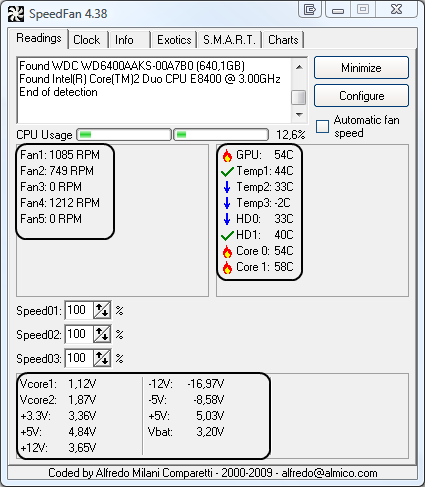
Download Speedfan (The download link is to the right), and install it. Once it's installed, run the program and post here the information it shows.
The information I want you to post is the stuff that is circled in the example picture I have attached.
To make sure we are getting all the correct information it would help us if you were to attach a screenshot like the one below of your Speedfan results.

To do a screenshot please have click on your Print Screen on your keyboard.
  • It is normally the key above your number pad between the F12 key and the Scroll Lock key
  • Now go to Start and then to All Programs
  • Scroll to Accessories and then click on Paint
  • In the Empty White Area click and hold the CTRL key and then click the V
  • Go to the File option at the top and click on Save as
  • Save as file type JPEG and save it to your Desktop
  • Attach it to your next reply


Posted Image

#5 Jenny-talia

  • Group: Member
  • Posts: 4
  • Joined: 05-March 10

Posted 05 March 2010 - 09:47 AM

I have a Dell Optiplex and those [bleep]s BURN though fans. Im on my 4th one and I've had the thing less then three years.
It's like a 10-15 dollar part an takes next to no time to replace. It's never just shut down on you? It's got like a heat sensor thing so it will shu down before it overheats, but I still get the feeling you can do some damage if you continue to run it with a bad fan.

#6 ShowMe

  • Group: Member
  • Posts: 82
  • Joined: 27-March 09

Posted 05 March 2010 - 01:53 PM

I have never opened up my PC case.
I think I did everything correctly.

Attached thumbnail(s)

  • Attached Image: untitled.JPG


#7 rshaffer61

  • Group: Moderator
  • Posts: 32,408
  • Joined: 28-February 09

Posted 05 March 2010 - 02:48 PM

Those reading can't be correct cause your system would not be running if they were. Try this:


Download SIW from HERE and get the Standalone English version
It will install itself and when finished
Then Click on SIW Icon to run program
On the left side click on Sensors and then on the right, copy and paste the information in your next reply

#8 ShowMe

  • Group: Member
  • Posts: 82
  • Joined: 27-March 09

Posted 05 March 2010 - 05:23 PM

Sensor Value Min Max
MARTIN-CDJ7XJOC
ST360015A
Temperatures
Assembly 32 °C (89 °F) 31 °C (87 °F) 32 °C (89 °F)


Hope I did it right

You amaze me.

#9 rshaffer61

  • Group: Moderator
  • Posts: 32,408
  • Joined: 28-February 09

Posted 05 March 2010 - 05:27 PM

Is this all that is showing? There should be more like the PSu wattage info especially the 3 volt and 12 volt rails.

#10 ShowMe

  • Group: Member
  • Posts: 82
  • Joined: 27-March 09

Posted 05 March 2010 - 06:21 PM

That is all I get.
adding screenshot

Attached thumbnail(s)

  • Attached Image: untitled.JPG


#11 rshaffer61

  • Group: Moderator
  • Posts: 32,408
  • Joined: 28-February 09

Posted 05 March 2010 - 06:24 PM

Ok try this one.

    Download and install Free Everest Home Edition
    Open it.
    1: In left pane expand Computer folder.
    2: Click once on Summary
    3: In upper menu, go Report
    4: And then to Quick Report-Summary
    5: Save it in text file, and paste it in your next post.
    Click the + by computer, click on Sensor. Get a screenshot and post it so I can check your temps and voltages...


DO NOT INCLUDE ANYTHING UNDER THE LINE THAT SAYS "DEBUG- PCI"

#12 ShowMe

  • Group: Member
  • Posts: 82
  • Joined: 27-March 09

Posted 05 March 2010 - 07:34 PM

Here is what I have

Hope I did it right

Attached File(s)


#13 rshaffer61

  • Group: Moderator
  • Posts: 32,408
  • Joined: 28-February 09

Posted 05 March 2010 - 08:32 PM

You did it right but nothing is giving me the sensors I need to see
This is at the point you need to open the case and do a visual inspection.
Looking at the computer from the front the left side panel should come off.
What I'm looking to know about is the following fans on the inside.
CPU fan which will be located on the motherboard itself. It sits on top of the CPU. It will look something like the picture located HERE.
Scroll down to section 4 called The Result
You will see the inside of the case and the fan you see is the cpu fan. That is what I'm onterested to know if it is turning correctly.
The other fan I'm interested to know about is 5 pictures above that.
What I need you to do is to open the case. Then turn the system on and let me know if these two fans are turning.

#14 ShowMe

  • Group: Member
  • Posts: 82
  • Joined: 27-March 09

Posted 06 March 2010 - 09:52 AM

I am stymied. It seems there is no easy way for me to open the case, as I see no screws on either side of the case. I am attaching pictures of the case for you to see. At this point, I think I should take it to a shop. ( I am very inept with mechanical things) Your advice and help is much appreciated.

#15 ShowMe

  • Group: Member
  • Posts: 82
  • Joined: 27-March 09

Posted 06 March 2010 - 09:57 AM

Oops, pics did not load

Attached thumbnail(s)

  • Attached Image: case.JPG


Share this topic:


  • 3 Pages +
  • 1
  • 2
  • 3