
One of the best kept secrets of Windows XP is its built in repair feature!
In previous versions of Windows, correcting an operating system error, or installing a new motherboard, usually meant formating and reinstalling, resulting in loss of all data. Don't worry; Windows XP repair feature won't delete your data, installed programs, personal information, or settings. It just repairs the operating system!
Note: The system repair function will remove any updates you have previously installed that are not included on the CD. Drivers will also be reverted to their original XP versions, as well as some settings (network & performance settings may sometimes be reset to their defaults). It may be necessary to reactivate your Windows XP as well. When finished, you will have to download all of the updates from Microsoft Windows Update, because they are all replaced during repair.
Why would I want to reinstall Windows XP?
1) Can't start Windows XP in safe mode.
2) You have problems caused by a recently installed system update (Windows Update, hotfix, Windows XP service pack, or Microsoft Internet Explorer update).
3) Your problems can't be solved with system restore, or you can't access system restore.
4) You've installed a new motherboard, or made other major hardware changes and need to reinstall Windows.
Let's get started!
Step 1: Rule out hardware issues. Windows Repair will only fix software problems. Hardware issues can also cause boot problems (i.e. bad hard drive, memory, CPU, or power supply).
Step 2: Backup. It's always a good idea to backup your important data before making changes to Windows XP. Relax, if you follow these instructions your data will be perfectly safe.
Step 3: Boot from your Windows XP CD. Insert the Windows XP CD into your computer's CD-ROM or DVD-ROM drive, and then restart your computer. When the "Press any key to boot from CD" message appears on the screen, press a key to start your computer from the Windows XP CD. Can't boot from your CD? Please see the note at the bottom of this page (Configuring Your Computer to Boot from CD).
Step 4: A blue screen will appear and begin loading Windows XP Setup from the CD.
Note: RAID/SCSI/Unsupported UDMA users:
You will be prompted to "press F6 to install any third party SCSI or RAID drivers". Most users will not have to press F6, but if you are running RAID, SCSI or unsupported UDMA controllers, then you will have to have your controller drivers on a floppy disk. If you are unsure whether you have RAID/SCSI, then simply let the CD load without pressing F6.
When completed loading files, you will be presented with the following "Windows Setup" screen, and your first option. Select "To set up Windows XP now, press ENTER". DO NOT select Recovery Console.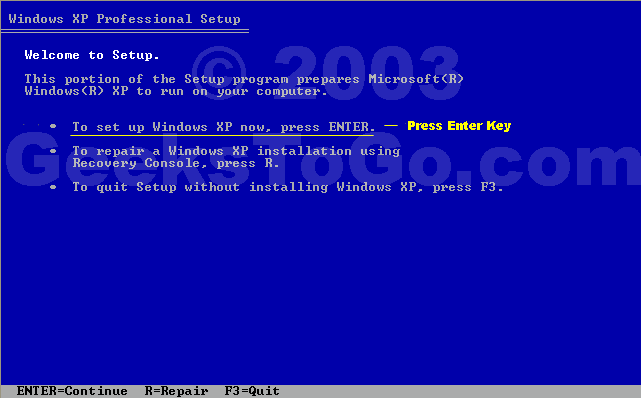
When presented with the screen below. press the F8 key to continue.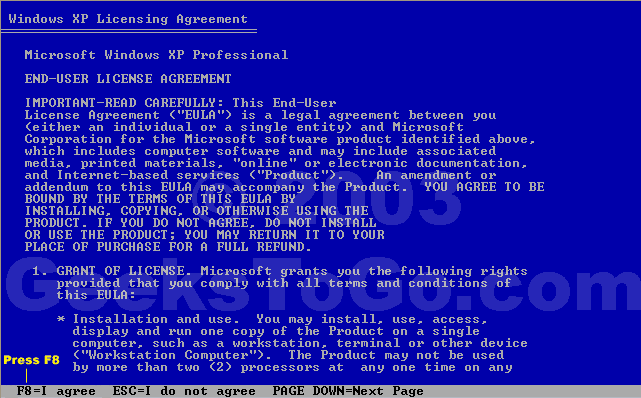
Next, Windows Setup will find existing Windows XP installations. You will be asked to repair an existing XP installation, or install a fresh copy of Windows XP.
If no installations are found, then you will not be given the option to repair. This may happen if the data or partition on your drive is too corrupted.
Note: If you install a fresh copy, all data on that partition will be lost!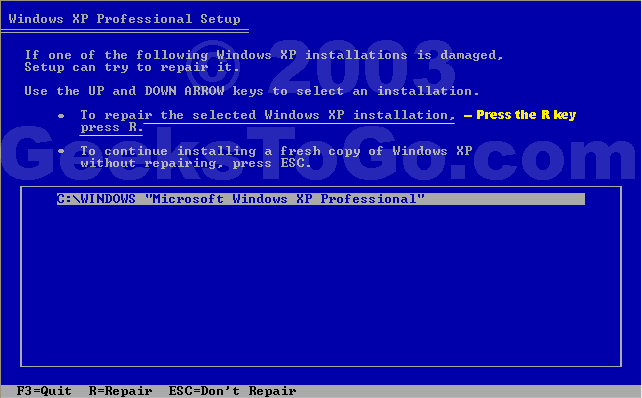
Your almost finished! Windows XP will appear to be installing itself for the first time, but it will retain all of your data and settings. Just follow the prompts, and have your CD-KEY ready if needed.
Do you have more than one system, or lost your CD-KEY? Visit the keyfinder page to retrieve your CD-KEY.
Update: Due to the proliferation of the Blaster and Welchia Worm/Virus be aware that a Repair Install will leave your system vulnerable. You can get infected within seconds. Do not go on line until you have enabled XP's firewall first.
Remember to run Windows Update! (install critical updates first)
-----------------------------
Configuring Your Computer to Boot from CD
Many computers are not configured to boot from the CDROM. If you cannot boot from the CDROM, this is probably due to the boot order of your devices being incorrect. You can change this in the BIOS.
You enter the BIOS from the first screen you see when you turn your computer on. To enter your BIOS, most users here will press the DEL key.
Most Dell, Toshiba, Gateway, Sony & HP systems will press F2.
Compaq users will usually have to press F10.
IBM typically uses F1 or F2.
Other brands may have different keys to press to enter setup, F1, F2, Del, Tab and CTRL+S. If possible see the manual for your computer or motherboard. Also, the BIOS will usually display which button to press to "enter setup" during POST (if it flashes by too fast, press the Pause key).
When you enter the BIOS setup, you need to change the boot order. The CDROM should be setup before the Hard Drive. Each BIOS is different, but here is an example: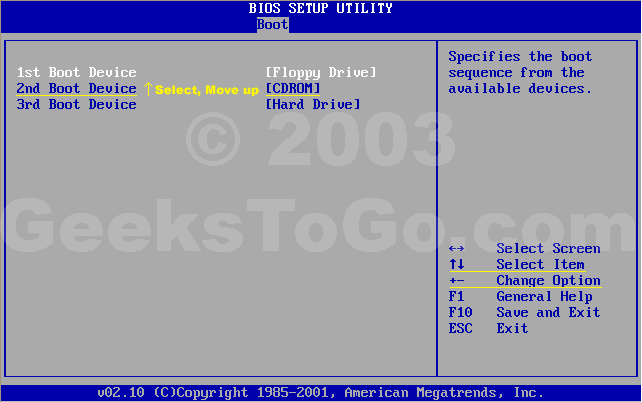
Note: If you need assistance with a repair installation, please start a new topic in our Windows XP Forum. This topic is also open for comments, but not all will receive a reply.
#1

 Posted 02 December 2003 - 04:28 PM
-

- Community Leader
-

- 24,639 posts
Founder Geek

#2
Posted 01 July 2004 - 10:18 AM
- Topic Starter
-
- Community Leader
-
- 24,639 posts
Founder Geek
The default password is blank, unless you've created an administrator password .For some reason it asked me for an administrators passcode?
#3
Posted 02 August 2004 - 02:35 PM
-

- Member
-

- 5 posts
New Member
To correct the problem, the user must boot the computer with a Windows 95 or 98 Startup diskette or another bootable diskette with sys.com on it. Then, at the "A:\>" prompt, type "sys c:" and press "enter." A "System Transferred" prompt should appear and then the user must reboot the computer without the diskette.I began to have some issues with my Windows XP. So I ran Norton to see if there were any viruses. Up-dated my windows, and rebooted. I rebooted, and from there, things just kept getting worse. now I can't even get windows to start.
I get this error message fter my bios load
Missing NTLDR
Press Ctrl-Alt-Dlt to restart
I tried to reload windows from the CD, but it won't load the setup screen. I changed the boot order, I even downloaded the Windows Floppy to CD-ROM Booster. Same problem.
Missing NTLDR
Press Ctrl-Alt-Dlt to restart
I have tried to just load a fresh copy of windoes on my IDE HDD instead of the SATA HDD, same problem.
Any suggestions would be very helpful.
Thanks.
Good Luck
ScottR
#4
Posted 07 January 2005 - 04:59 PM
- Topic Starter
-
- Community Leader
-
- 24,639 posts
Founder Geek
#5
Posted 08 January 2005 - 11:13 PM
-

- Member
-
- 8 posts
New Member
#6
Posted 08 January 2005 - 11:56 PM
- Topic Starter
-
- Community Leader
-
- 24,639 posts
Founder Geek
#7
Posted 09 January 2005 - 03:15 AM
-
- Member
-
- 8 posts
New Member
#8
Posted 09 January 2005 - 08:50 AM
- Topic Starter
-
- Community Leader
-
- 24,639 posts
Founder Geek
How to activate Windows XP by phoneI have read that you have to mail or call Microsoft for a new 44-key code in order to reactivate it. How is it done?
To contact a Microsoft customer service representative to activate Windows by phone, follow these steps: 1. Click Start, point to All Programs, point to Accessories, point to System Tools, and then click Activate Windows.
Or, click the Windows Activation icon in the notification area.
2. Click Yes, I want to telephone a customer service representative to active Windows now.
3. Click Read the Windows Product Activation Privacy Statement, click Back, and then click Next.
4. Follow the steps in the Activate Windows by phone dialog box, and then click Next.
Note The number appears now and differs based on the location that you select.
5. When activation is completed and you receive the following message, click OK.
You have successfully activated your copy of Windows.
I think you've stumbled onto your problem here. First, see if there's a BIOS update that supports larger drives. If not, look into a PCI IDE expansion card that supports large drives. You connect the IDE ribbon cable from the hard drive to this expansion card to it's recognized correctly.I read, does not support reading disk capacities higher than 137 GB. My disk has a capacity of 200 GB.
#9
Posted 12 January 2005 - 03:40 PM
-

- Member
-
- 340 posts
Member
#10
Posted 12 January 2005 - 03:54 PM
- Topic Starter
-
- Community Leader
-
- 24,639 posts
Founder Geek
#11
Posted 20 January 2005 - 02:30 PM
-

- Member
-
- 1 posts
New Member
SOMEHOW, I need to extract his registration KEY from the unbootable HD before I can "Repair" his system from the install CD.
I have the "Keyfinder" program but it apparently ONLY finds the KEY on a working version of XP!
"Keyfinder" says it extracts the KEY from the system registry file. Therefore...I was thinking I might try to create a new XP system on a spare HD using MY key, then replace the registry file with HIS registry file and then keyfinder might find HIS old key... but I doubt the system will like me ripping it's guts out like this?
ANY other ideas or solutions would be appreciated. Thanks!
#12
Posted 20 January 2005 - 05:58 PM
- Topic Starter
-
- Community Leader
-
- 24,639 posts
Founder Geek
http://support.micro...b;en-us;q307545
If that doesn't work. There is another method using Bart's PE, and Keyfinder PE.
#13
Posted 25 January 2005 - 07:08 AM
-
- Member
-
- 8 posts
New Member
#14
Posted 25 January 2005 - 10:47 AM
- Topic Starter
-
- Community Leader
-
- 24,639 posts
Founder Geek
I've been meaning to write an easier guide for creating SlipStreamed XP setup CD's. Maybe this will be my motivation.
#15
Posted 02 April 2005 - 10:26 AM
-

- Member
-
- 7 posts
New Member

Similar Topics
Also tagged with one or more of these keywords: Windows, Repair, How-to, XP

|
#linux
Discussion →
Off-Topic →
Two different OS on two different drivers - recommended?Started by Killian Gharrah , 17 Sep 2023  #linux, #windows, #SSD, #HDD #linux, #windows, #SSD, #HDD
|
|

|
|
|
|
Software →
Applications →
Recommendation on program which can set alerts/remindersStarted by Master T , 22 Nov 2022 alert, reminder, windows, android
|
|

|
|
|
|
Security →
Virus, Spyware, Malware Removal →
Checkmate Ransomware detection / removal?Started by JcTcom , 18 Aug 2022 Checkmate, Ransomware, Virus and 5 more...
|
|

|
|

|
Security →
Virus, Spyware, Malware Removal →
Help w/FRST logs...NEWBIE [Closed]Started by stephspomer , 28 Sep 2021 farbar, frst, virus, malware and 2 more...
|
|
![Help w/FRST logs...NEWBIE [Closed] - last post by DR M](https://www.geekstogo.com/forum/uploads/profile/photo-418842.gif?_r=1578338641)
|
|
|
|
Operating Systems →
Windows 8 and 8.1 →
Noob questionStarted by kelly1 , 02 Aug 2021 windows 8.1
|
|

|
0 user(s) are reading this topic
0 members, 0 guests, 0 anonymous users
As Featured On:






 Sign In
 Create Account